
Retrieve subscription documents (Multi-fund)
1. Purpose
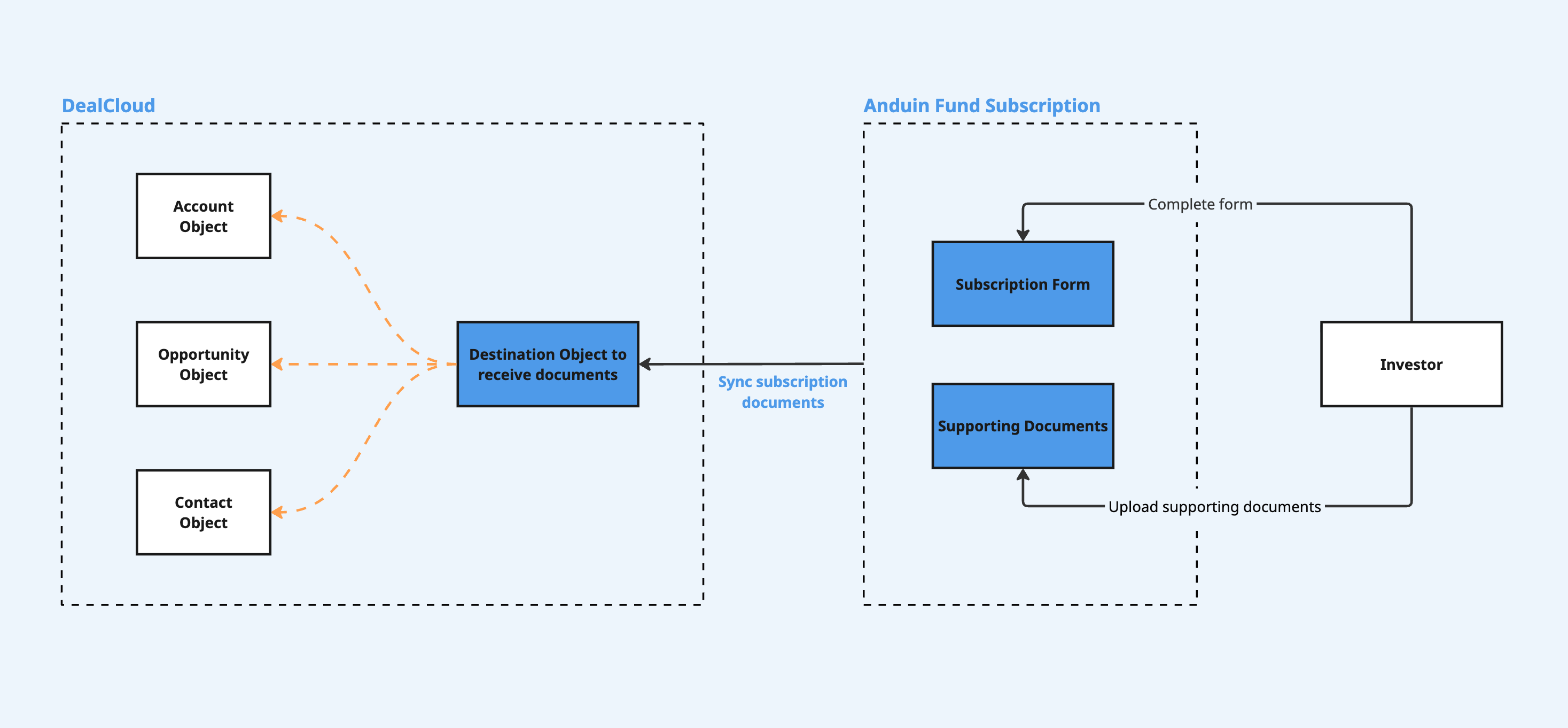
Automatically sync subscription and supporting documents from FundSub to the customer’s DealCloud CRM, eliminating manual downloads and ensuring records are complete and up to date
2. Key Benefits & Features
- Establishes DealCloud as the central repository for all investor documents. The Investor Relations (IR), Compliance, and Accounting teams know they can trust the record, as it reflects the final, signed subscription agreement and all associated supporting files
- Eliminates repetitive administrative work and dramatically reduces the risk of missing or mismatched documents
3. Target Personas
- Valuable for any FundSub customer using DealCloud as their CRM
- Especially useful for firms that need to sync high volumes of investor documents across multiple funds
4. Prerequisites
4.1 Third party app requirements
- Connected app
- API key: Customer must retrieve DealCloud credentials
- Object preparation: Customer must create an object to receive documents from Anduin, which must:
- a) Contain a text field that holds the Anduin order ID. Documents of the same order match to the same record through this field
- b) Contain a field of the Attachment type that allows multiple files. Every document of that order is added here
File Size Limit: DealCloud enforces a maximum attachment size of 100 MB per file. This limit is set by DealCloud; files above this size cannot be transferred through the integration.
4.2 Anduin app requirements
- Fund access — the user must either:
- Have admin access to the intended funds, or
- Know a team member with admin access who can grant the necessary permissions during setup
- Document types: understand the two categories of documents that will be pushed:
- Subscription document — pushed when an order reaches the subscription status selected during setup
- Supporting document — files investors upload, such as tax forms and government issued IDs, pushed the moment they're uploaded
5. Pre-Setup Checklist
| Task | Owner | Note | Anduin guide |
|---|---|---|---|
| DealCloud API key | Customer | Consulted by Anduin | LINK |
| DealCloud object preparation | Customer | Consulted by Anduin | Customer must create an object to receive documents from Anduin, which must: a) Contain a text field that holds the Anduin order ID b) Contain a field of the Attachment type that allows multiple files |
| Fund access | Customer | Consulted by Anduin |
6. Step-By-Step Setup Guide
6.1 Grant access to the Integration Hub
- Customers need to contact their Implementation manager to ensure they have access to the Integration Hub and this integration
6.2 Locate the solution
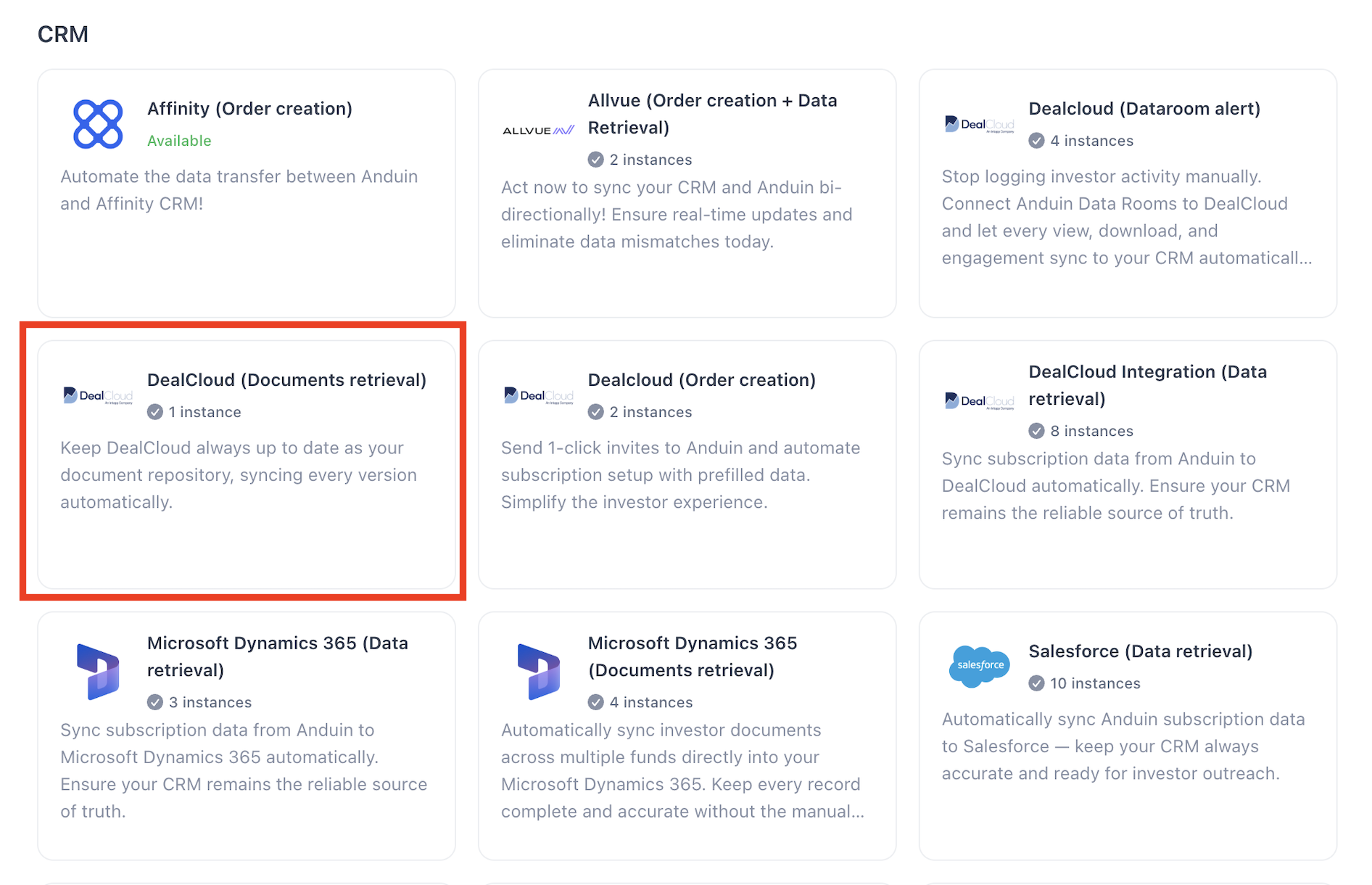
- In the Browse tab of the Integration Hub, the customer can locate the DealCloud (Document retrieval) solution
6.3 Install the solution
Step 1 - Click Install:
- Click Install to begin setup.
Step 2 - Name the Integration:
- Recommend a clear and descriptive name (e.g., “DealCloud integration - Fund Alpha” or “By John Smith”). Click Next: Link to Anduin objects.
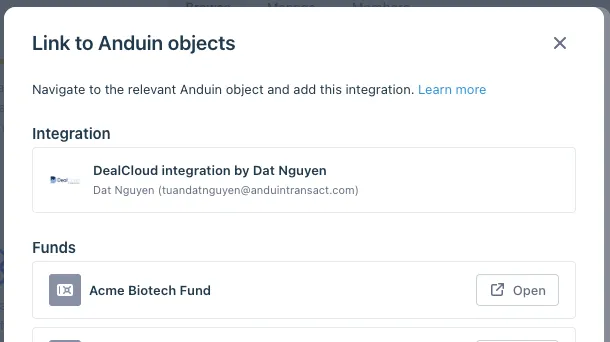
Step 3 - Grant integration permission to customer’s intended objects (funds):
- Step 3.1: A list of accessible Anduin objects (e.g., Funds) will appear.
- Step 3.2: Click Open next to the relevant fund.
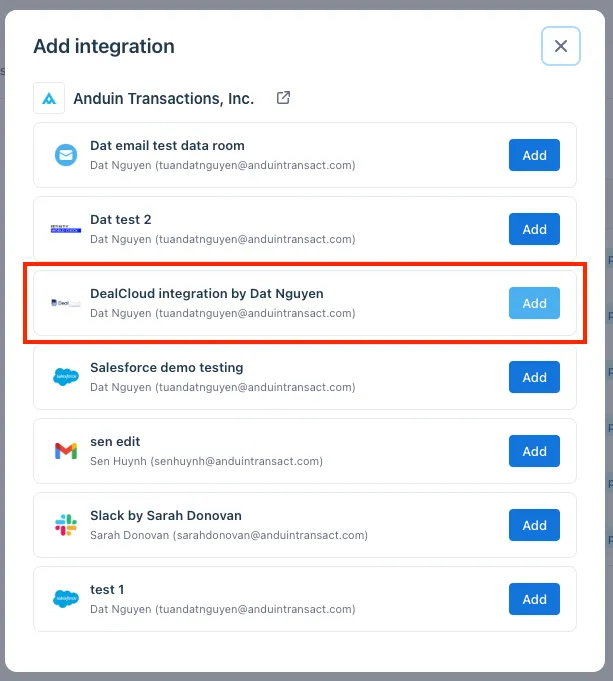
- Step 3.3: In the permission module, find the integration name and click Add.
- Step 3.4: Return to the Integration Hub, the fund should now show a “Linked” tag.
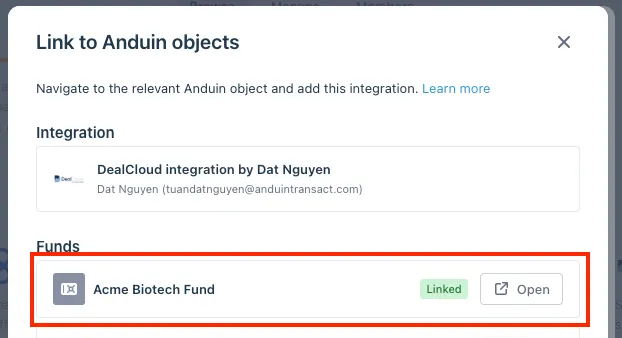
If the target fund is not listed, there are 2 options
- Customer needs to be added with admin role for that fund, then return to the step 3.2. Customer should be able to see the target fund there
- Customer requests their team member who has admin role in that fund to perform step 3.3 using Settings > Integrations in the FundSub app and they can continue with step 3.4
6.4 Configure the solution
The configuration wizard has 4 steps shown in the left hand navigation:
Step 1 — Getting started: Authentication
Enter DealCloud credentials.
- Anduin Connection (required)
- DealCloud Connection (required)
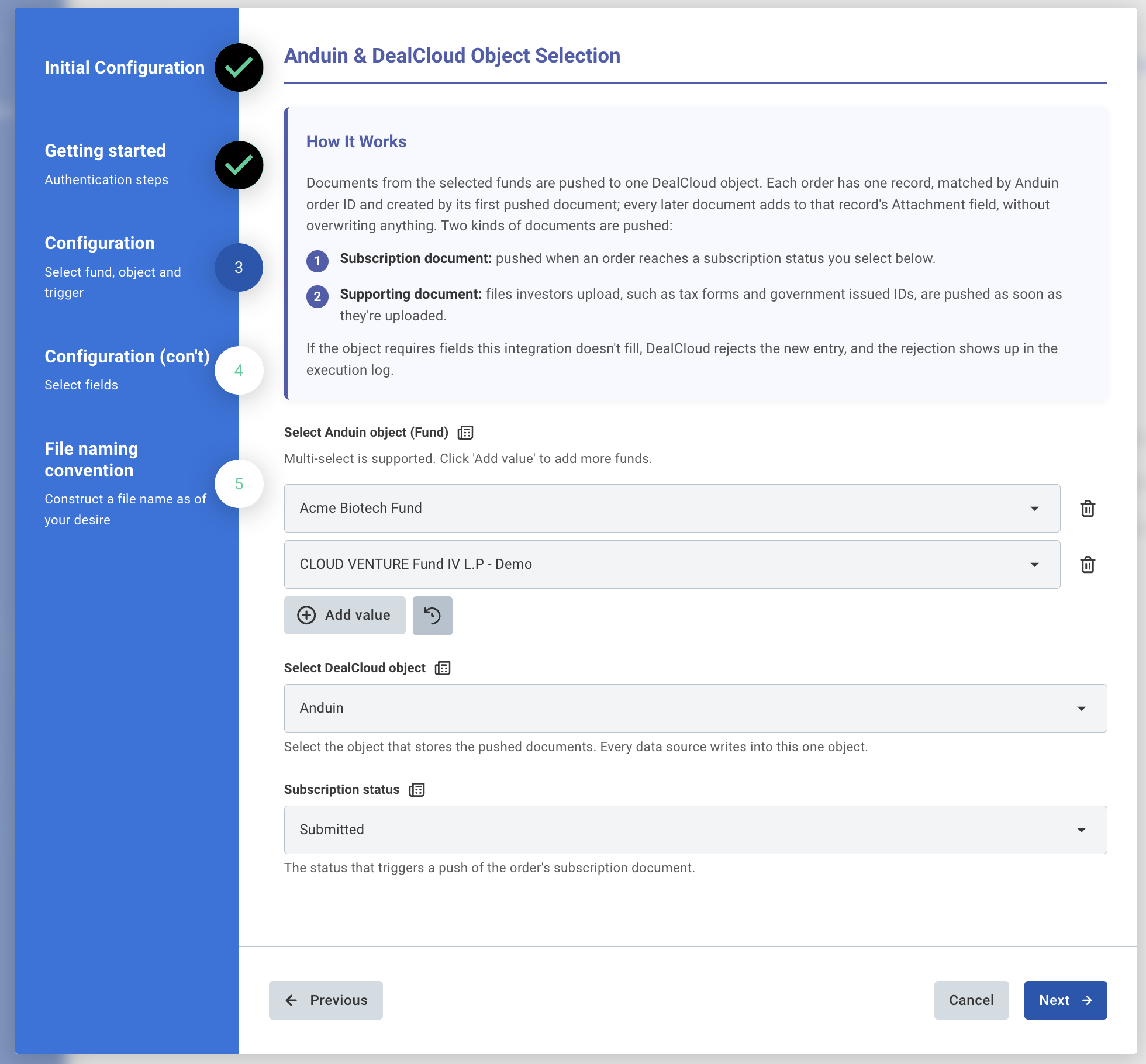
Step 2 — Configuration: Anduin & DealCloud object selection
Documents from the selected funds are pushed to one DealCloud object. Each order has one record, matched by Anduin order ID and created by its first pushed document; every later document adds to that record's Attachment field, without overwriting anything. Two kinds of documents are pushed:
- Subscription document: pushed when an order reaches a subscription status you select below
- Supporting document: files investors upload, such as tax forms and government issued IDs, pushed as soon as they're uploaded
- Select Anduin object (Fund): Multi-select is supported. Click Add value to add more funds
- Select DealCloud object: the object that stores the pushed documents. Every data source writes into this one object
- Subscription status: the status that triggers a push of the order's subscription document — the submitted document for Submitted or Pending approval, the countersigned document for Countersigned, and for Complete, the countersigned document if one exists, otherwise the submitted one
Note on document versions: When a document is updated after the initial push (e.g., a re-signed subscription or corrected W-9), the updated file is added to the order's record instead of overwriting the previous one. Previous versions remain in place and are distinguishable by filename timestamp.
If the object requires fields this integration doesn't fill, DealCloud rejects the new entry, and the rejection shows up in the execution log.
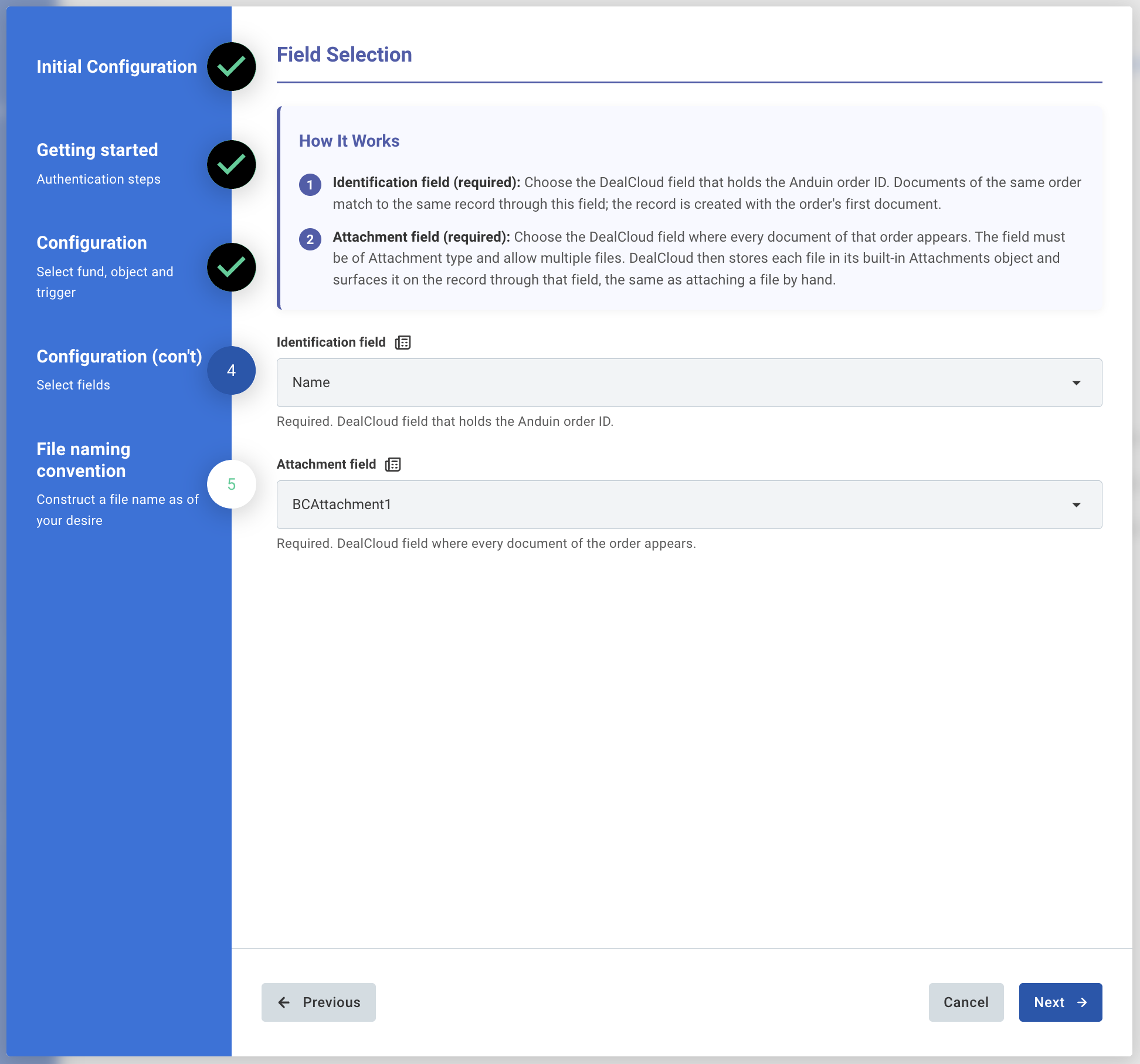
Step 3 — Configuration (con't): Field selection
These dropdowns read the live field schema of the object you selected on the previous page.
- Identification field (required): the DealCloud field that holds the Anduin order ID. Documents of the same order match to the same record through this field; the record is created with the order's first document
- Attachment field (required): the DealCloud field where every document of that order appears. The field must be of Attachment type and allow multiple files. DealCloud then stores each file in its built in Attachments object and surfaces it on the record through that field, the same as attaching a file by hand
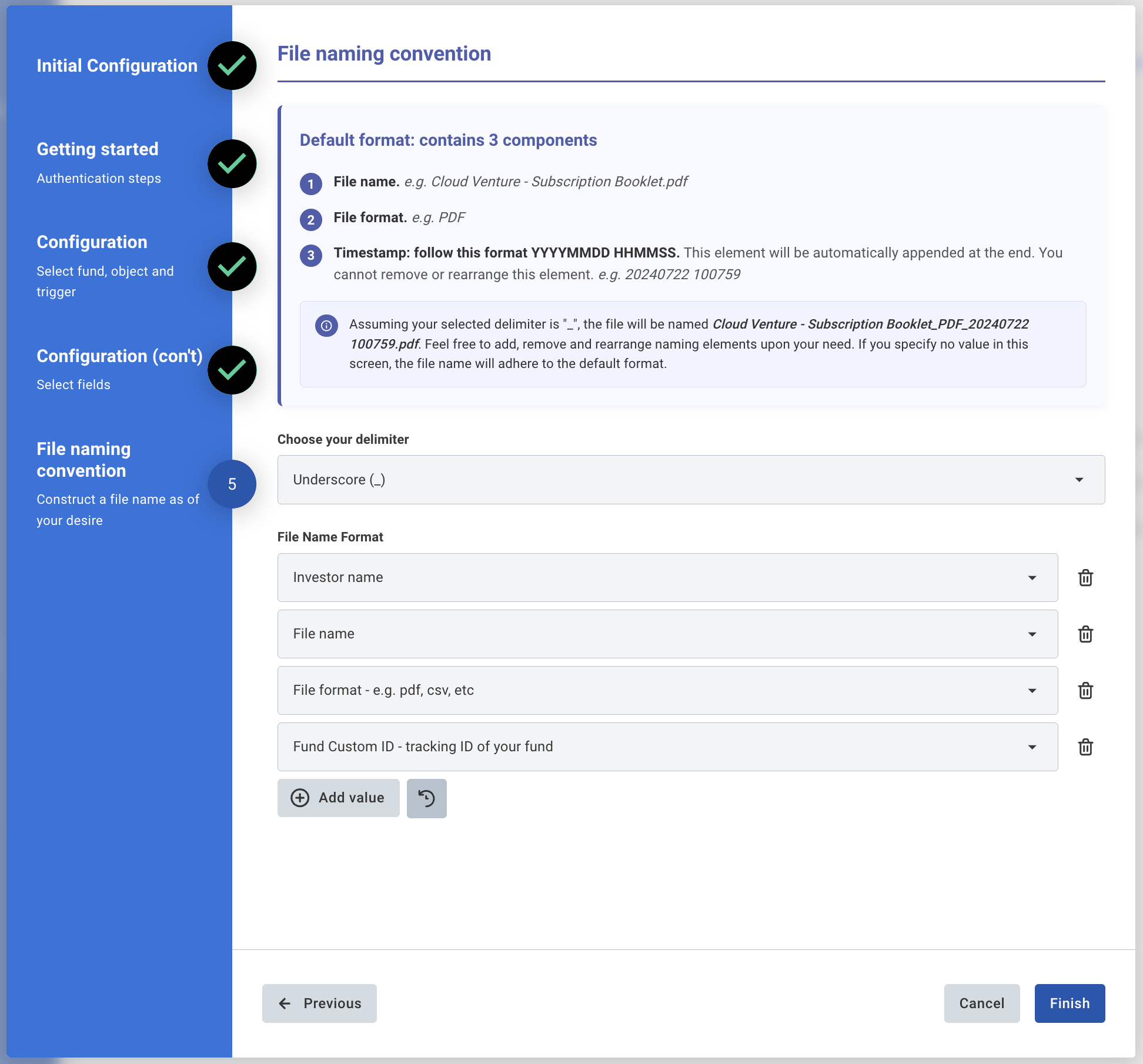
Step 4 — File naming convention
- Choose your delimiter (e.g. Underscore
_) - Default format contains 3 components:
- File name — e.g. Cloud Venture - Subscription Booklet.pdf
- File format — e.g. PDF
- Timestamp — follows format YYYYMMDD HHMMSS. This element is automatically appended at the end and cannot be removed or rearranged
- File Name Format: Configurable. Add, remove, and rearrange naming elements as needed. If no value is specified, the file name will adhere to the default format
Click Finish to complete setup.
6.5 Validate the solution
Once configuration is complete, validate each document type:
- Subscription document: Create a subscription in the target fund, fill out the data, and move it to the selected subscription status
- Supporting document: Submit a supporting form or upload a supporting file as an investor
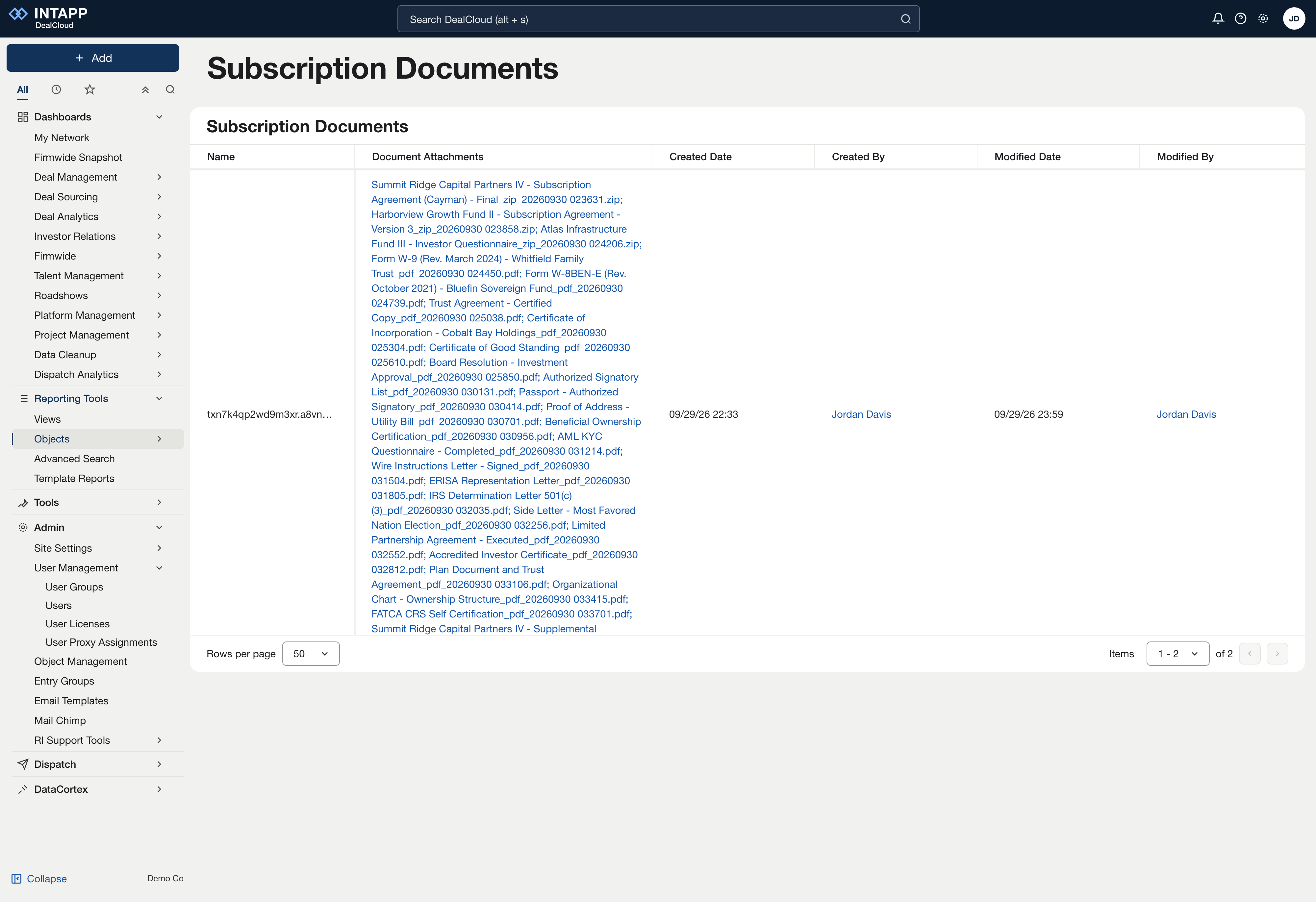
Each of these should result in a record being created or updated in the target DealCloud object, with the corresponding document added to its Attachment field.
If the automation works end to end for both document types, the setup is successfully validated.
7. Version Accumulation
When a document is updated after the initial push (for example, a subscription document signed again after a change request, or a corrected W-9), the updated file is added to the order's record instead of overwriting the previous one. Every version accumulates in the Attachment field; nothing is replaced. Each version is distinguishable by its filename timestamp.
Updated 11 days ago