
SS&C Review Workflow
1. Purpose
Automate the transfer of AML/KYC review data and document check statuses from SS&C into the FundSub dashboard—eliminating the need for manual data entry between systems.
2. Key Benefits & Features
- Centralized status tracking: Bring SS&C’s AML/KYC review results directly into FundSub for consistent workflows, oversight, and audit readiness.
- Standardized data capture: Automate document processing to remove fragmented, manual workflows.
- Time savings at scale: Reduce repetitive administrative work for fund managers handling multiple subscriptions.
3. Potential Customer Personas
- Any FundSub customer working with SS&C.
- Particularly valuable for teams managing large subscription volumes who want to avoid manual file transfers between systems.
4. Prerequisites
4.1 Third party app requirements
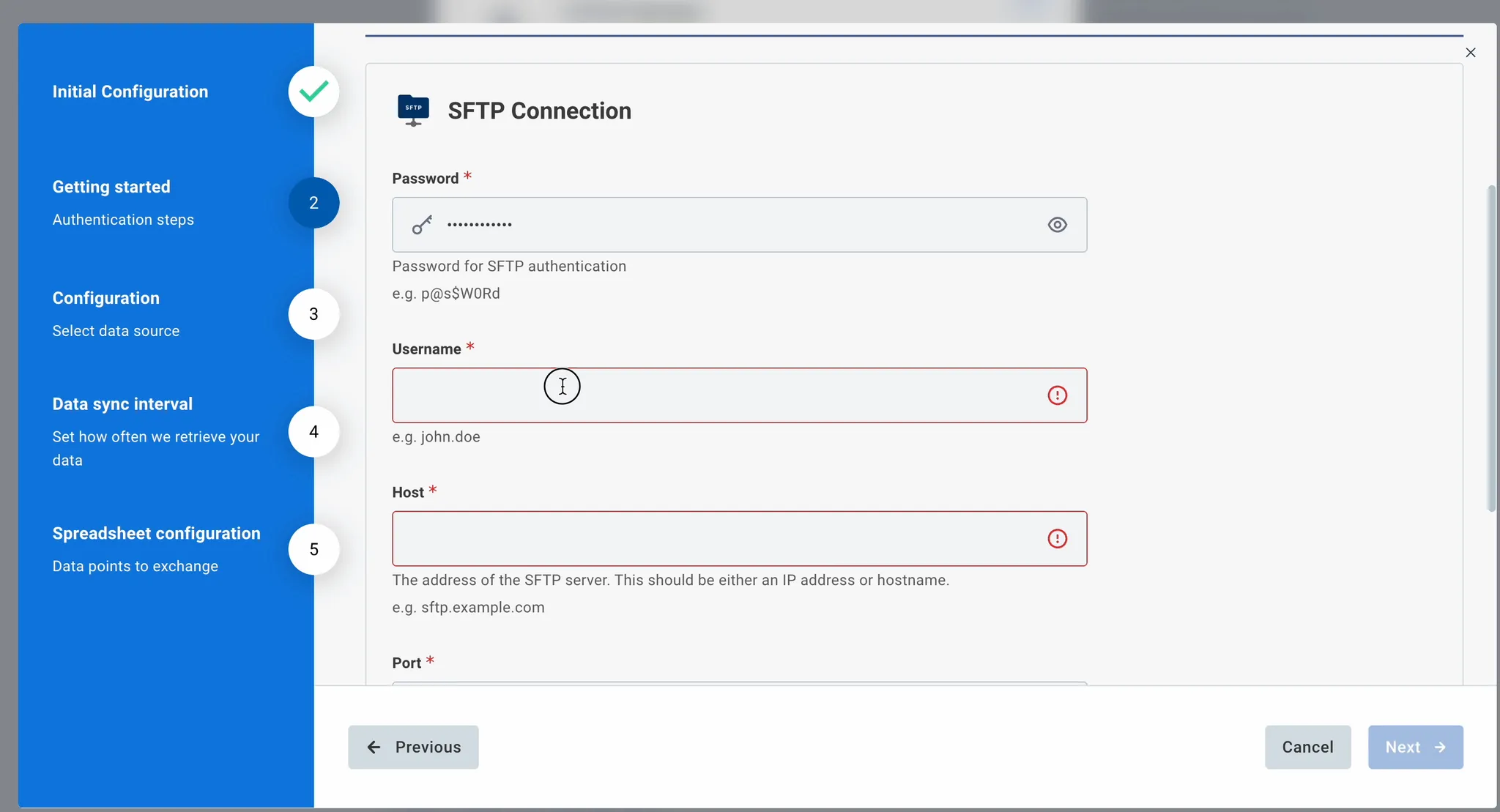
- SFTP Credentials: Customers must provide valid SFTP credentials for use during setup.
- Excel Requirements: The excel file must follow below rules
- Row rule
- First row = header (flexible naming)
- Each subsequent row = one investor subscription per fund
- Column rule
- Must include one column containing the Anduin subscription ID.
- Include any additional columns that should appear in the FundSub dashboard.
- Row rule
4.2 Anduin app requirements
Permission to Fund
- Fund access - the user must either:
- Have admin access to the intended funds, or
- Know a team member with admin access who can grant the necessary permissions during setup
Integration logic
Model Overview
This integration follows a scheduled file-based synchronization model. It operates through periodic polling rather than real-time event triggers.
At predefined intervals, the system:
- Connects to a client-managed SFTP server
- Scans configured directories for eligible report files
- Identifies the latest file per report type
- Processes and synchronizes relevant data
The client must provide:
- Exact SFTP directory path(s)
- Confirmation of naming convention compliance
The integration supports multiple configurable SFTP paths to accommodate different environments or folder structures.
Supported Report Types
The integration currently supports the following CSV-based report types:
- IGO–NIGO
- Transactions
- Positions
- Pending Trade Spot (TIP64)
These reports act as structured data feeds and serve different roles in the synchronization process. Empty reports (i.e., files containing no data rows) are not transmitted and will not be processed.
File Naming Convention & Identification Logic
Each report must follow a deterministic naming pattern to allow automated detection and sequencing.
[StaticPrefix]YYYYMMDDHHMMSS.csv

Example: GX_267775_Anduin_IGO-NIGO_20251010132301.csv
Where:
- StaticPrefix uniquely identifies the report type
- Timestamp format:
YYYYMMDDHHMMSS - Extension:
.csv
Processing Rules
- Only files matching the expected naming pattern are eligible.
- If multiple versions exist for a report type, the file with the latest timestamp is selected.
- Processing is performed per report type per polling cycle.
The timestamp embedded in the filename is the single source of truth for determining recency.
Report Roles & Required Data Structure
IGO–NIGO (Primary Anchor Dataset) serves as the authoritative anchoring dataset and must contain:
- Unique Order Identifier (e.g., Anduin Order ID)
- Fund identifier
- Account identifier
- Additional configurable status or scope fields
This report is processed first during each polling cycle. The unique order identifier is used as the primary key for record matching.
Supplementary Reports: The following reports provide additional contextual or financial data:
- Transactions
- Positions
- Pending Trade Spot (TIP64)
These reports must contain:
- Fund identifier
- Account identifier
Matching for these reports relies on a composite key: Fund + Account. This composite key enables cross-referencing with records established during IGO–NIGO processing.
Configurable Data Mapping
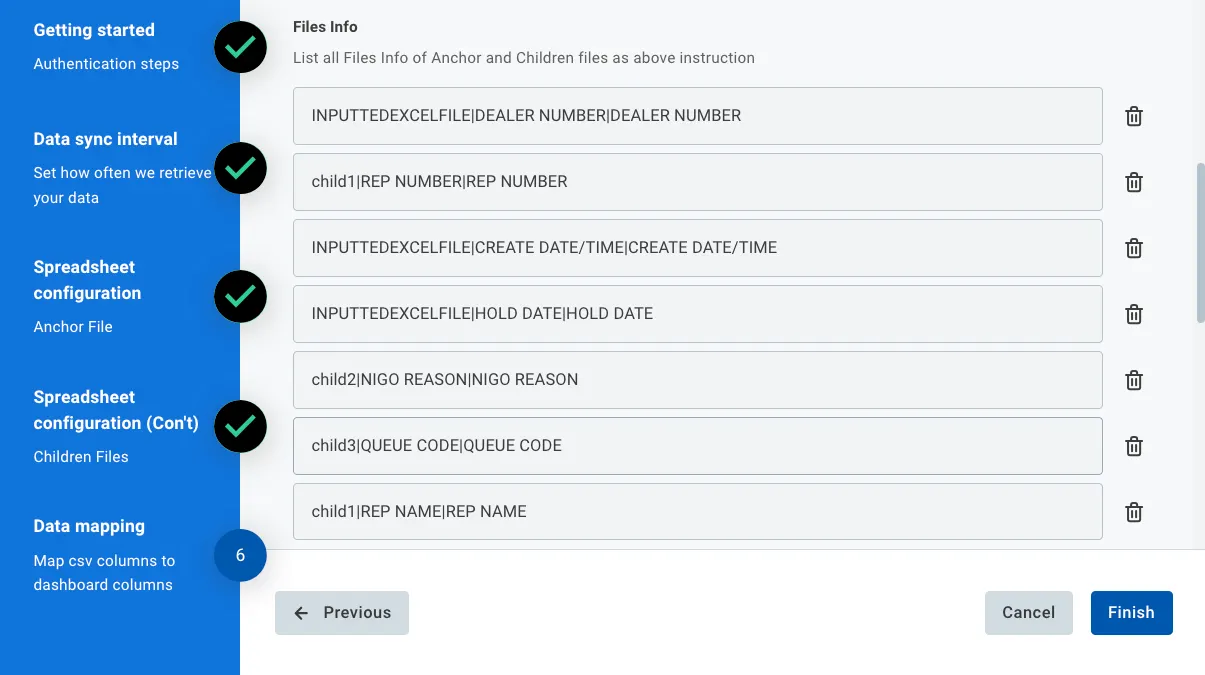
The integration supports configurable column-level mapping. Specific fields from each report type can be selected for synchronization.
Examples:
- Status and NIGO scope from IGO–NIGO
- Comments from Transactions
- Amount values from Positions
This approach allows flexibility without requiring structural redesign when business requirements evolve. Only configured columns are synchronized into the target system as metadata updates.
Processing Flow per Polling Cycle
During each polling interval, the integration executes the following sequence:
Step 1 – Scan SFTP
- Connect to configured SFTP path(s)
- Identify the latest eligible file per report type
Step 2 – Process IGO–NIGO (Primary Matching)
For each row:
- Identify the corresponding fund
- Match the record using the unique order identifier
- Sync configured metadata fields (e.g., status, scope, comments)
- Store fund and account values for cross-referencing
Step 3 – Process Supplementary Reports
For Transactions, Positions, and TIP64 - For each row:
- Identify the corresponding record using composite key (Fund + Account)
- Map to the correct subscription or transaction record
- Sync configured metadata fields
5. Pre-Setup Checklist
| Task | Owner | Note | Anduin guide |
|---|---|---|---|
| SFTP Credentials | Customer | https://developers.anduintransact.com/docs/authentication-2 | |
| Fund access | Customer | Consulted by Anduin | |
| Integration logic | Customer | Consulted by Anduin | See section 4.2 |
6. Internal Step-By-Step Rollout Guide
6.1 Grant access to the Integration Hub
- Customers need to contact their Implementation manager to ensure they have access to the Integration Hub and this specific integration
6.2 Locate the solution
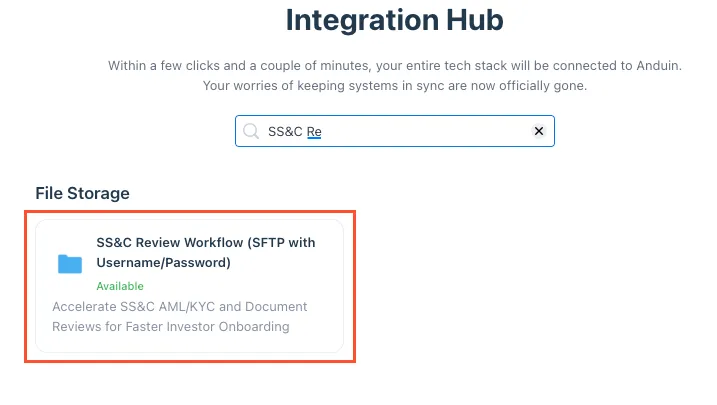
- In the Browse tab of the Integration Hub, the customer can locate the SS&C review workflow (SFTP with Private Key) or SS&C review workflow (SFTP with Username/Password) solution, depending on their authentication method.
6.3 Install the solution
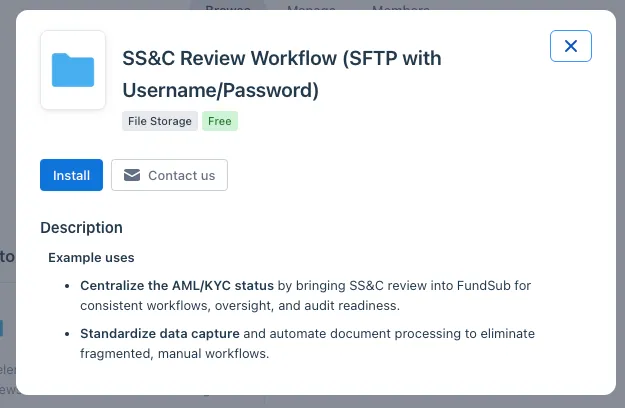
- Step 1: Click Install to begin setup
-
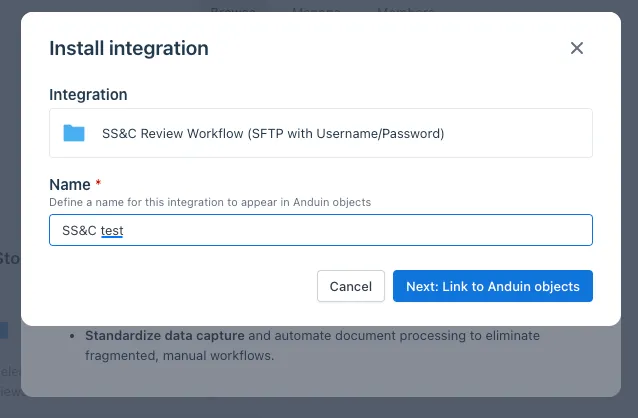
Step 2: Name the Integration
- Recommend a clear and descriptive name (e.g., “SS&C review setup by John Smith”)
- Click Next: Link to Anduin objects
-
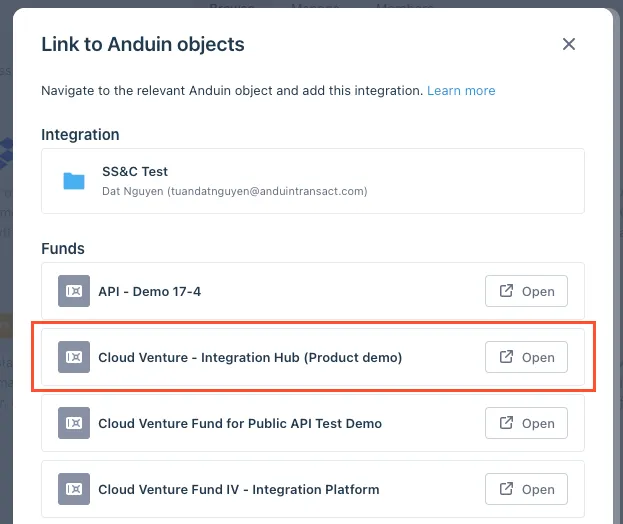
Step 3: Grant integration permission to customer’s intended objects (funds)
-
Step 3.1: A list of accessible Anduin objects (e.g., Funds) will appear
-
Step 3.2: Click Open next to the relevant fund
-
Step 3.3: In the permission module, find the integration name and click Add
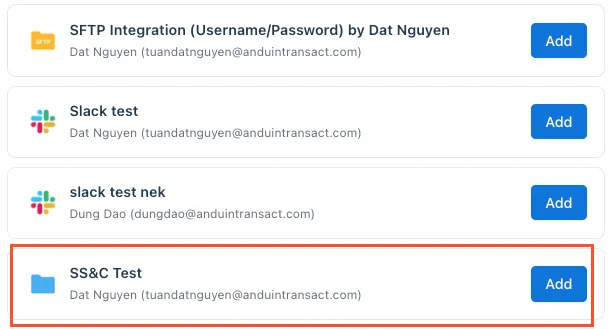
- Step 3.4: Return to the Integration Hub - the fund should now show a “Linked” tag
If the target fund is not listed, there are 2 options
- Customer needs to be added with admin role for that fund, then return to the step 3.2. Customer should be able to see the target fund there
- Customer requests their team member who has admin role in that fund to perform step 3.3 using Settings > Integrations in the FundSub app and they can continue with step 3.4
-
6.4 Configure the solution
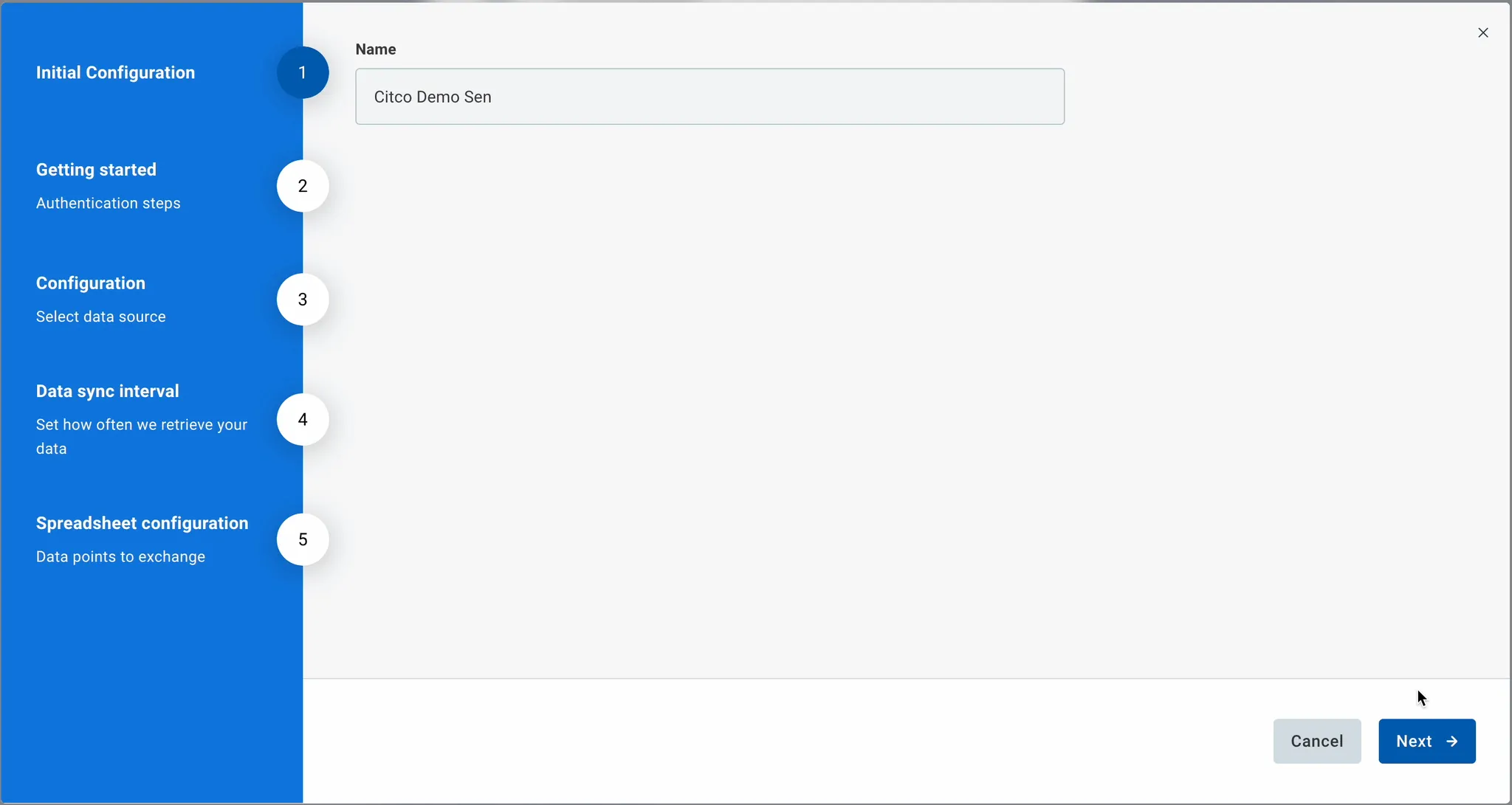
- The customer may rename the integration or proceed as-is
- Enter SFTP credentials
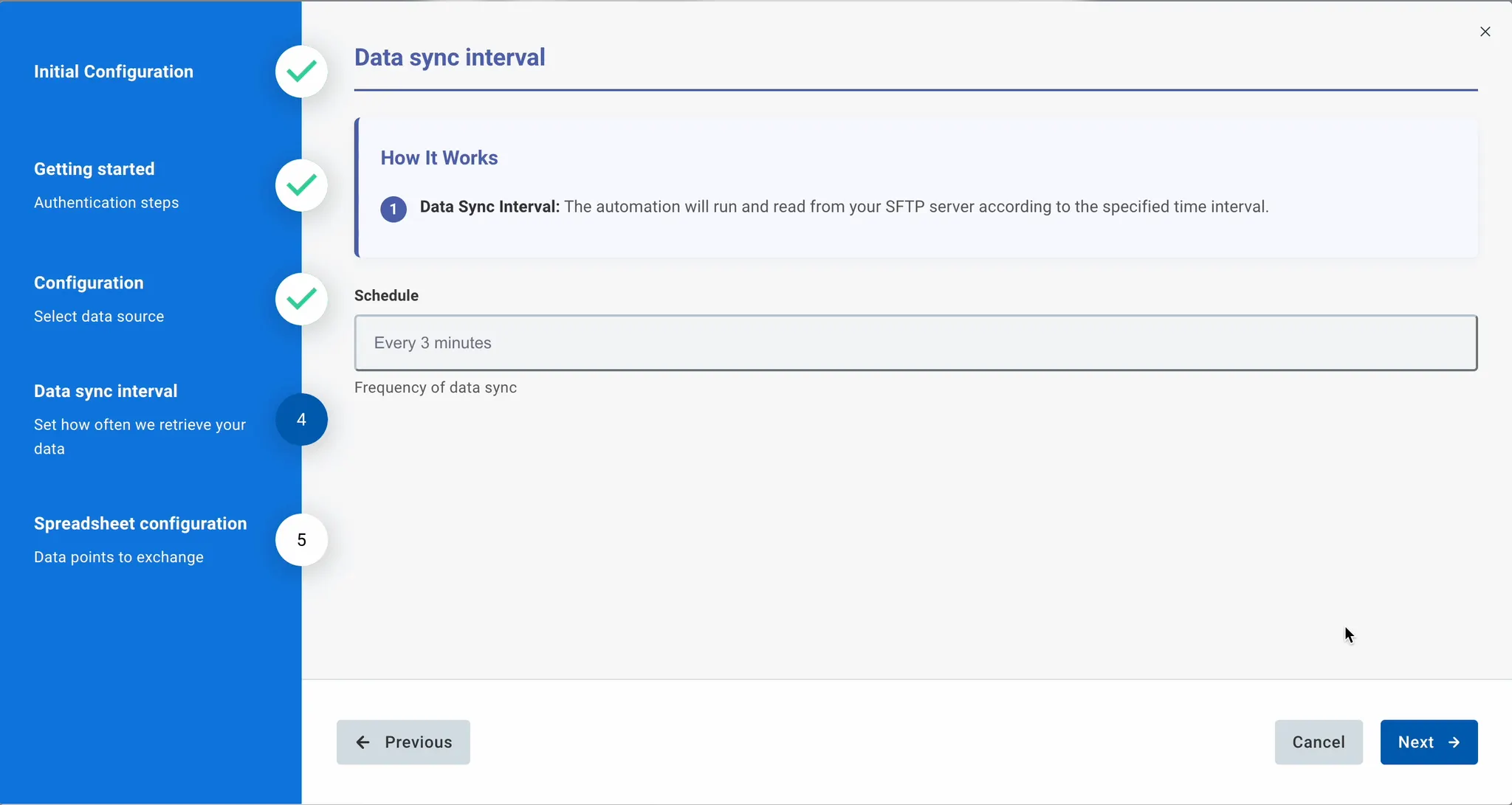
- Specify the data sync frequency. The automation will run and read from customer’s SFTP server according to the specified time interval.
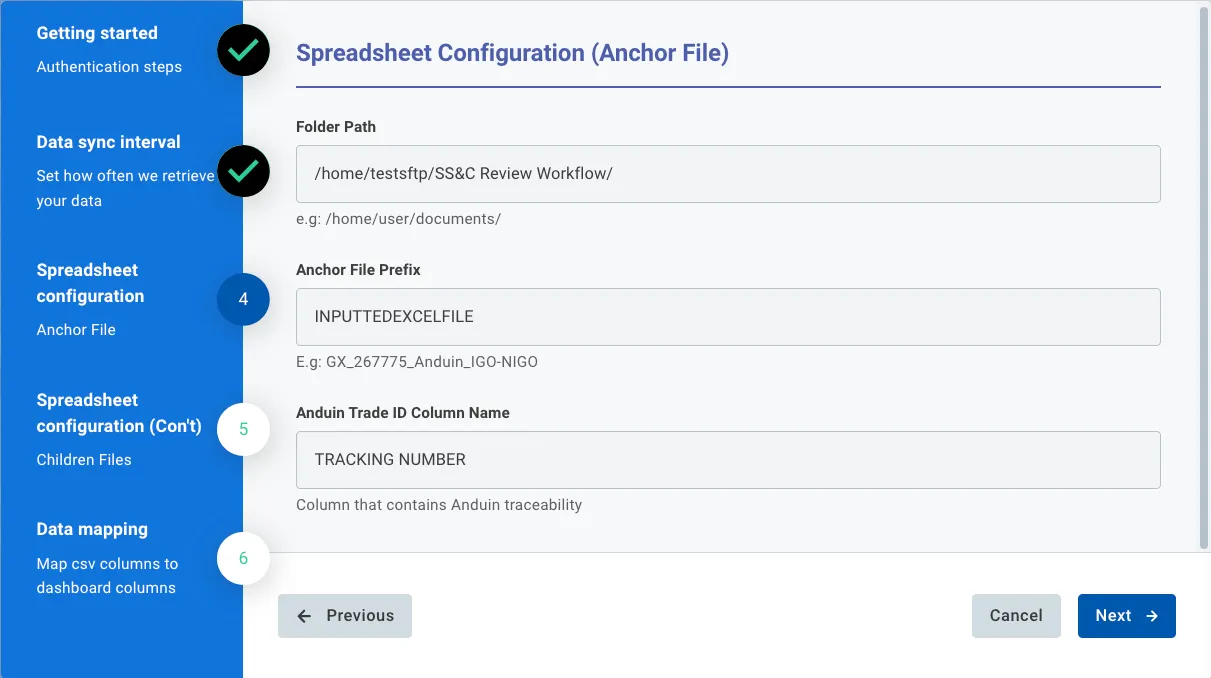
- Configure for the anchor file (IGO-NIGO report)
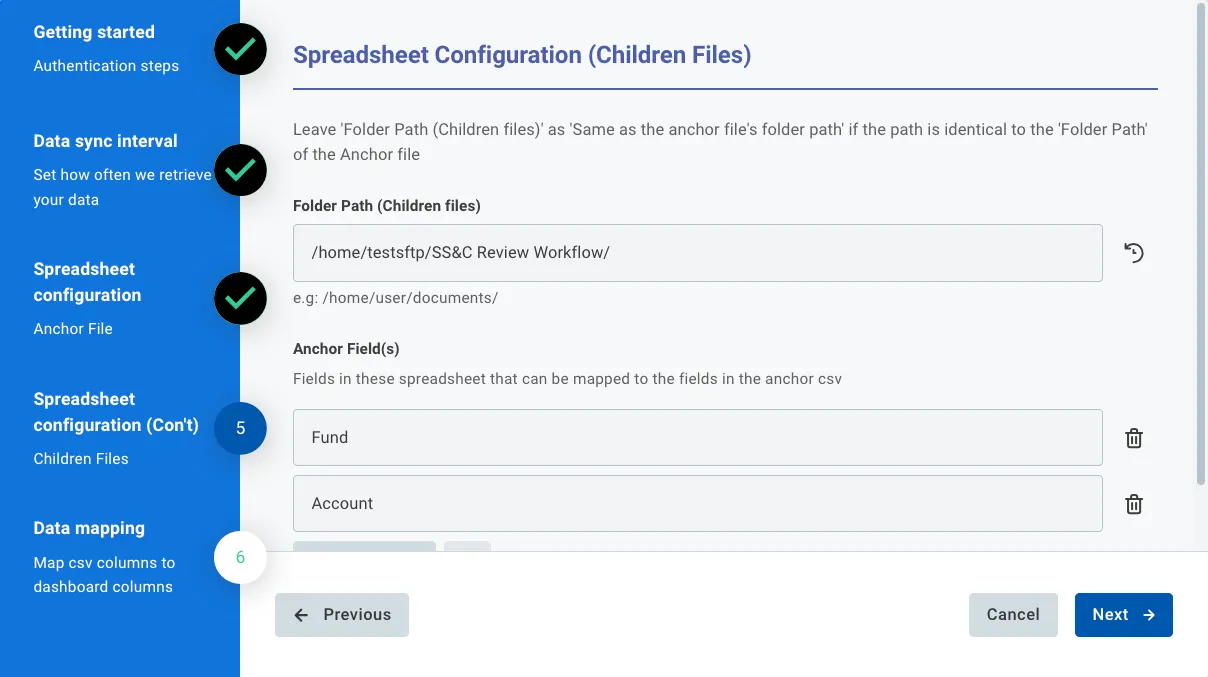
- Configure the remaining reports
- Specify the column mapping
6.5 Validate the solution
Once configuration is complete:
-
Wait until the next reporting interval
-
Verify that:
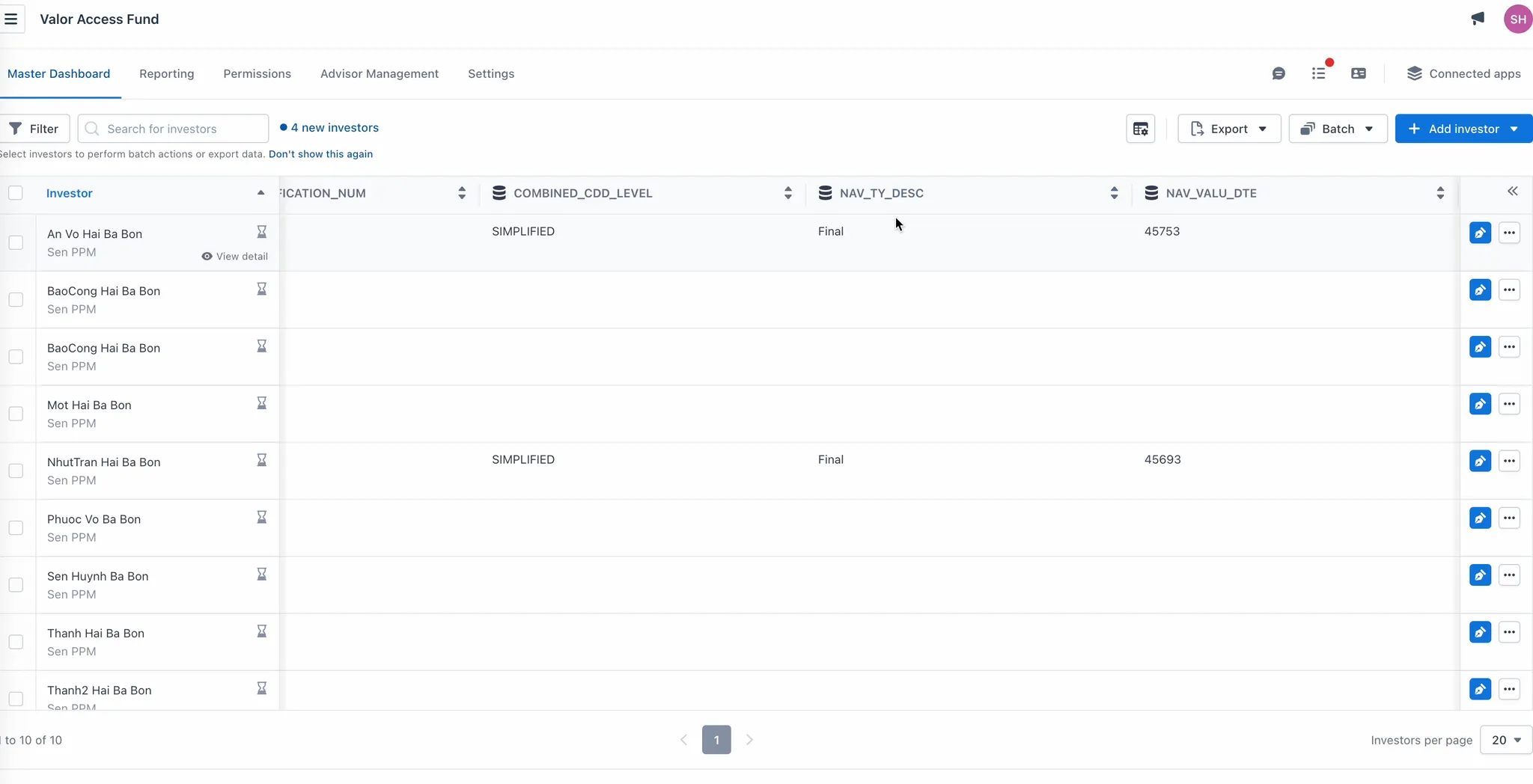
- Configured columns appear in the FundSub dashboard.
- Data is correctly matched to subscriptions and funds.
If the automation works end-to-end, the setup is successfully validated.
Updated 8 months ago