
JPMorgan Automated Document Transfer
1. Purpose
This integration establishes a secure SFTP channel to automatically transfer investor documents, such as subscription agreements, directly from Anduin to JPMorgan. It enables JPMorgan to efficiently retrieve the necessary documentation to perform their critical investor onboarding and AML/KYC compliance checks. Ultimately, this direct file transfer streamlines the workflow by eliminating the need for JPMorgan personnel to manually log into Anduin, accelerating the entire process.
2. Key Benefits & Features
- Accelerate Onboarding: Automate document delivery to JPMorgan, eliminating manual work and starting investor reviews faster.
- Enhance Security & Compliance: Securely transfer all investor data via SFTP without sharing system credentials, creating a full audit trail.
- Ensure Data Accuracy: Eliminate manual errors by delivering organized and complete document packages to your fund administrator automatically.
- Timely notification: You and your Fund Administrator receive instant alerts when a new document is uploaded or when the full subscription package is ready for final review.
3. Potential Customer Personas
- Any GP using JPMorgan who wants to eliminate manual handoffs and reduce administrative workload.
- Firms needing to automate back-office processes to handle a growing volume of investors.
4. Prerequisites
4.1 Third party app requirements
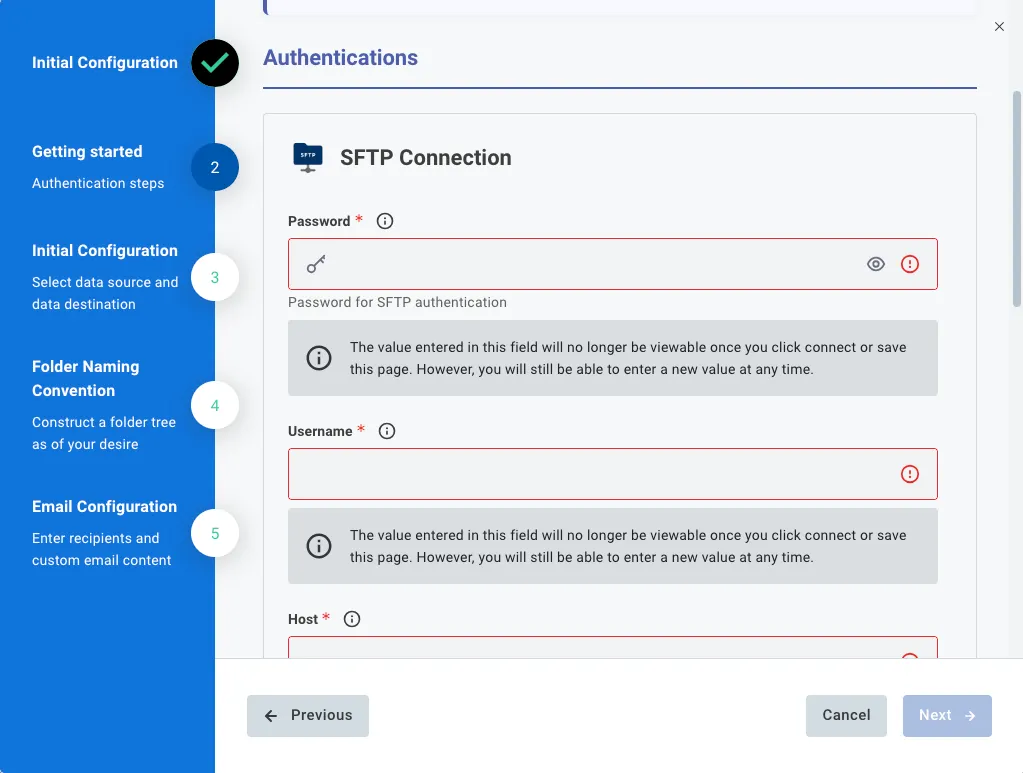
- Customer must retrieve and enter their SFTP credentials
4.2 Anduin app requirements
Fund permission - The user must either:
- Have admin access to the intended funds, or
- Know a team member with admin access who can grant the necessary permissions during setup
A wide range of capabilities is hard coded into the integration logic. These were gathered and confirmed by JPMorgan team but it’s always better to re-inform involved parties to ensure there is no knowledge gap at the start
Fund Custom ID requirement
- JPMorgan enforces a 255-character file name length limit, and the file name must include fund-identifying information. Because Anduin fund names can be long and include spaces each connected fund must be assigned a Custom Fund ID. Key points:
- Custom Fund ID is a shortened identifier
- No spaces or special characters allowed
- Maximum length: 20 characters
- This field is configured on the Fund UI as Custom Fund ID
- Custom Fund ID is mandatory for the integration to function correctly
The hardcoded Naming convention
Two file formats are pushed to SFTP, each with a predefined naming structure.
- ZIP
CustomFundID_InvestorName_OrderID_TimeStamp.ext- Notes:
- CustomFundName: max 20 characters
- InvestorName: truncated to 200 characters
- OrderID: 10 characters (e.g., lpp9vqyj5g)
- TimeStamp: max 15 characters (YYYYMMDDHHMMSS)
- Total length: up to 249 characters
- Document: subscription and supporting documents:
CustomFundID_InvestorName_OrderID_FileName_TimeStamp.ext- Notes:
- CustomFundID: max 20 characters
- InvestorName and FileName: truncated to 100 characters each
- OrderID: 10 characters (e.g., lpp9vqyj5g)
- TimeStamp: max 15 characters (YYYYMMDDHHMMSS)
- Total length: up to 249 characters
The Integration logic
This integration consists of three embedded workflows:
- WF1: Supporting document upload
- Trigger: A supporting document is uploaded to Anduin
- Action: Document is immediately pushed to SFTP
- Naming: Document naming convention
- WF2: Subscription pending approval
- Trigger: An order reaches Pending Approval
- Action: Subscription document is pushed to SFTP
- Naming: Document naming convention
- WF3: Order completion
- Trigger: An order reaches Complete
- Action: A ZIP file containing all subscription and supporting documents is pushed to SFTP
- Naming: ZIP naming convention
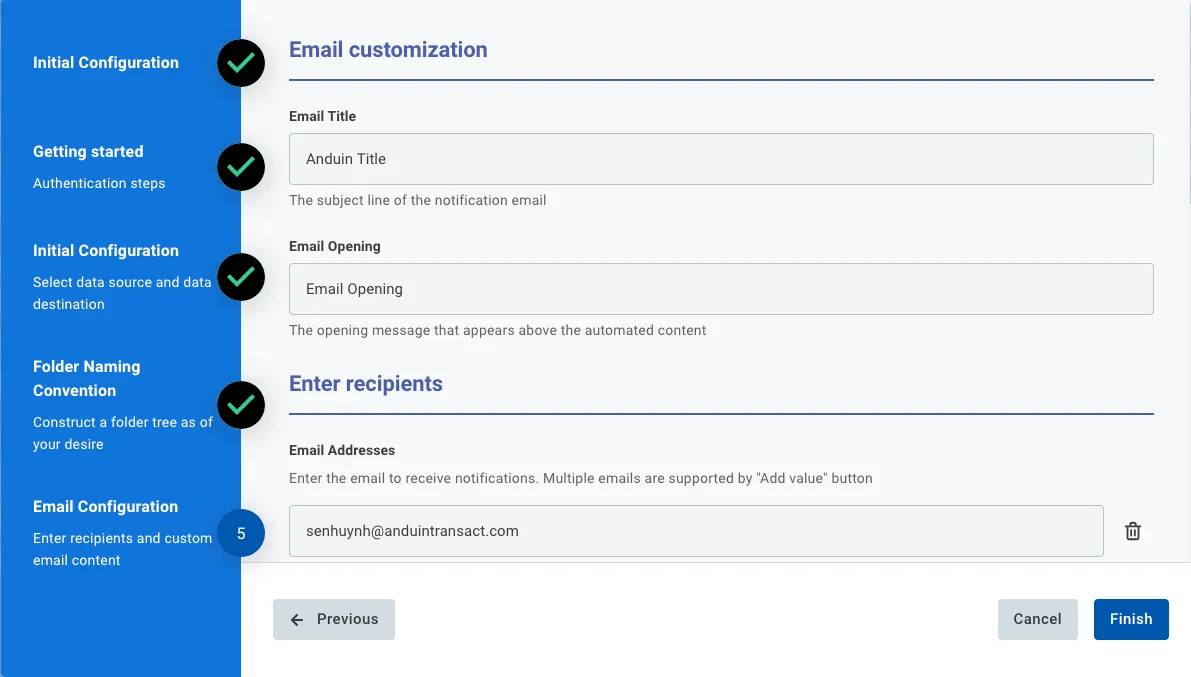
Each workflow triggers an email notification to predefined recipients.
- WF1 & WF2:
- Email title: configurable
- Email body
- Opening: configurable
- Remaining: fixed
- New document is uploaded
- Fund name
- Fund custom ID
- Fund ID
- Order ID
- Close name
- Link
- New document is uploaded
- WF3:
- Email title: configurable
- Email body
- Opening: configurable
- Remaining: fixed
- Document package is ready
- Fund name
- Fund custom ID
- Fund ID
- Order ID
- Close name
- Link
- Document package is ready
5. Pre-Setup Checklist
| Task | Owner | Anduin’s guide |
|---|---|---|
| Permission to Anduin funds | Customer, Consulted by Anduin | Section 4.2 |
| SFTP credentials | Customer | LINK |
| Assign Fund custom ID | Anduin | Section 4.2 |
| Aware of the use of Fund custom ID | Customer, Consulted by Anduin | Section 4.2 |
| Aware of the Naming convention | Customer, Consulted by Anduin | Section 4.2 |
| Aware of the Automation logic | Customer, Consulted by Anduin | Section 4.2 |
6. Internal Step-By-Step Rollout Guide
6.1 Grant access to the Integration Hub
- Customers need to contact their Implementation manager to ensure they have access to the Integration Hub and this specific integration
6.2 Locate the solution
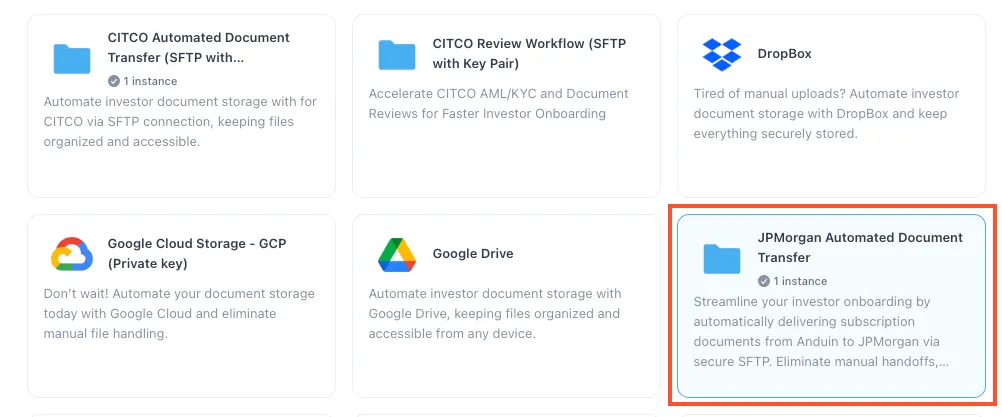
- In the Browse tab of the Integration Hub, the customer can locate the JPMorgan Automated Document Transfer (SFTP with Private Key) or JPMorgan Automated Document Transfer (SFTP with Username/Password) solution, depending on their authentication method.
6.3 Install the solution
-
Step 1: Click Install to begin setup
-
Step 2: Name the Integration
- Suggest a clear, descriptive name (e.g., “JPMorgan - Cloud Venture”)
- Click Next: Link to Anduin objects
-
Step 3: Grant integration permission to customer’s intended objects (funds)
-
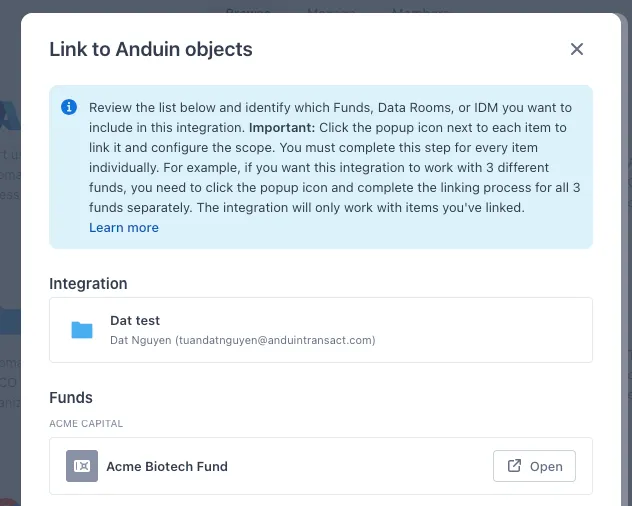
Step 3.1: A list of accessible Anduin objects (e.g., Funds) will appear
-
Step 3.2: Click Open next to the relevant fund
-
-
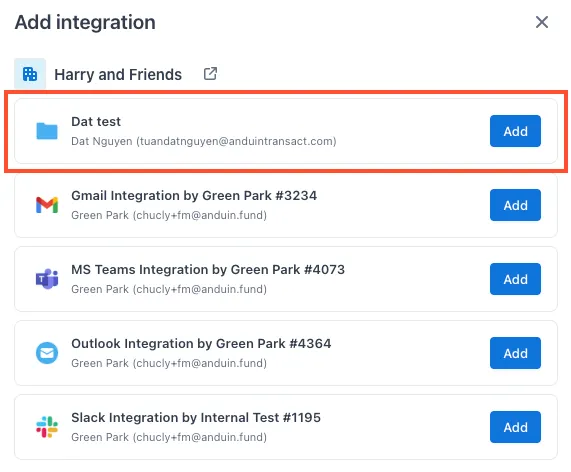
Step 3.3: In the permission module, find the integration name and click Add
-
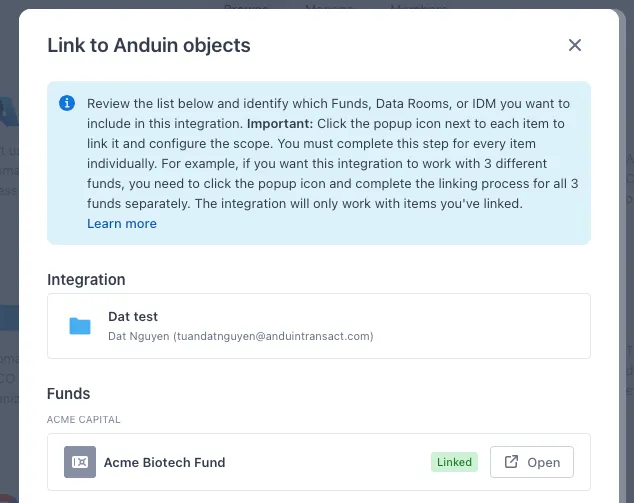
- Step 3.4: Return to the Integration Hub - the fund should now show a “Linked” tag
If the target fund is not listed, there are 2 options
- Customer needs to be added with admin role for that fund, then return to the step 3.2. Customer should be able to see the target fund there
- Customer requests their team member who has admin role in that fund to perform step 3.3 using Settings > Integrations in the FundSub app and they can continue with step 3.4
6.4 Configure the solution
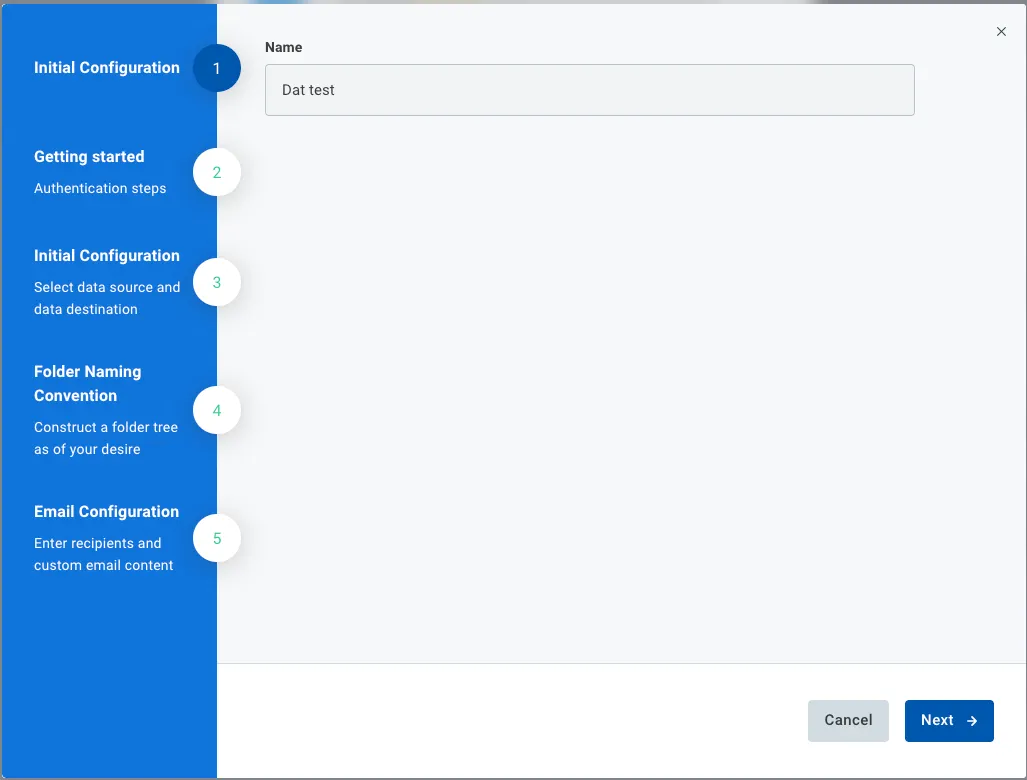
- The customer may rename the integration or proceed as-is
- Enter SFTP credentials
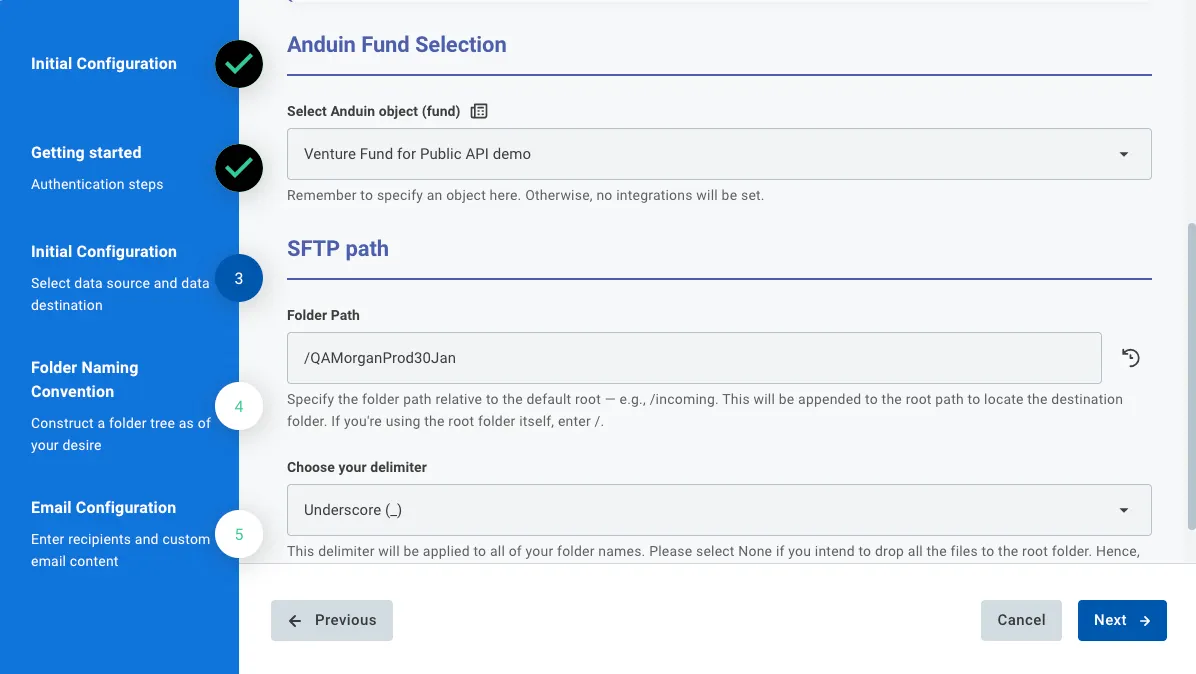
- Select a connected Anduin fund and the target SFTP folder you want to create a connection between
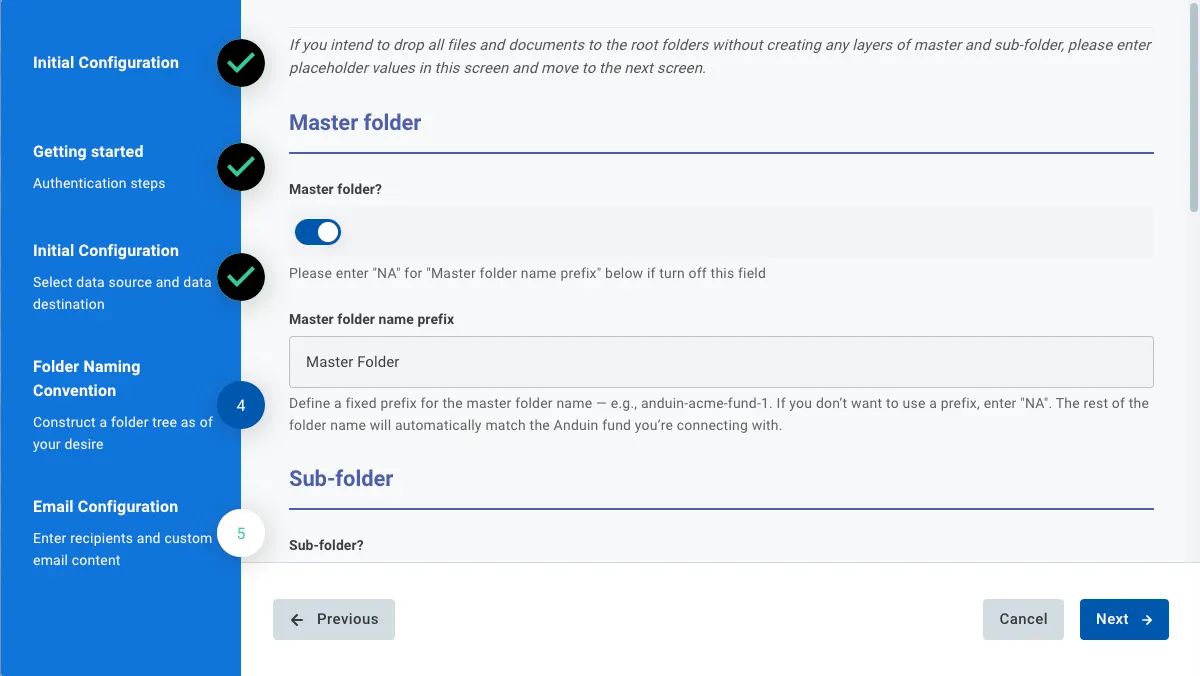
- Folder configuration
- Email configuration
6.5 Validate the solution
- Complete the subscription agreement and move the order to Pending Approval. You should see the subscription document sent to your SFTP using the correct naming convention, along with an email notification.
- Upload any document to the Supporting Documents section. You should see each document sent to your SFTP using the correct naming convention, along with an email notification.
- Complete a subscription. You should see a ZIP file containing all subscription and supporting documents sent to your SFTP, along with a corresponding email notification.
Updated 9 months ago