
SS&C Automated Document Transfer
1. Purpose
This integration establishes a secure SFTP channel to automatically transfer investor documents, such as subscription agreements, directly from Anduin to SS&C. It enables SS&C to efficiently retrieve the necessary documentation to perform their critical investor onboarding and AML/KYC compliance checks. Ultimately, this direct file transfer streamlines the workflow by eliminating the need for SS&C personnel to manually log into Anduin, accelerating the entire process.
2. Key Benefits & Features
- Accelerate Onboarding: Automate document delivery to SS&C, eliminating manual work and starting investor reviews faster.
- Enhance Security & Compliance: Securely transfer all investor data via SFTP without sharing system credentials, creating a full audit trail.
- Ensure Data Accuracy: Eliminate manual errors by delivering organized and complete document packages to your fund administrator automatically.
3. Target Personas
- Any GP using SS&C who wants to eliminate manual handoffs and reduce administrative workload.
- Firms needing to automate back-office processes to handle a growing volume of investors.
4. Prerequisites
4.1 Third party app requirements
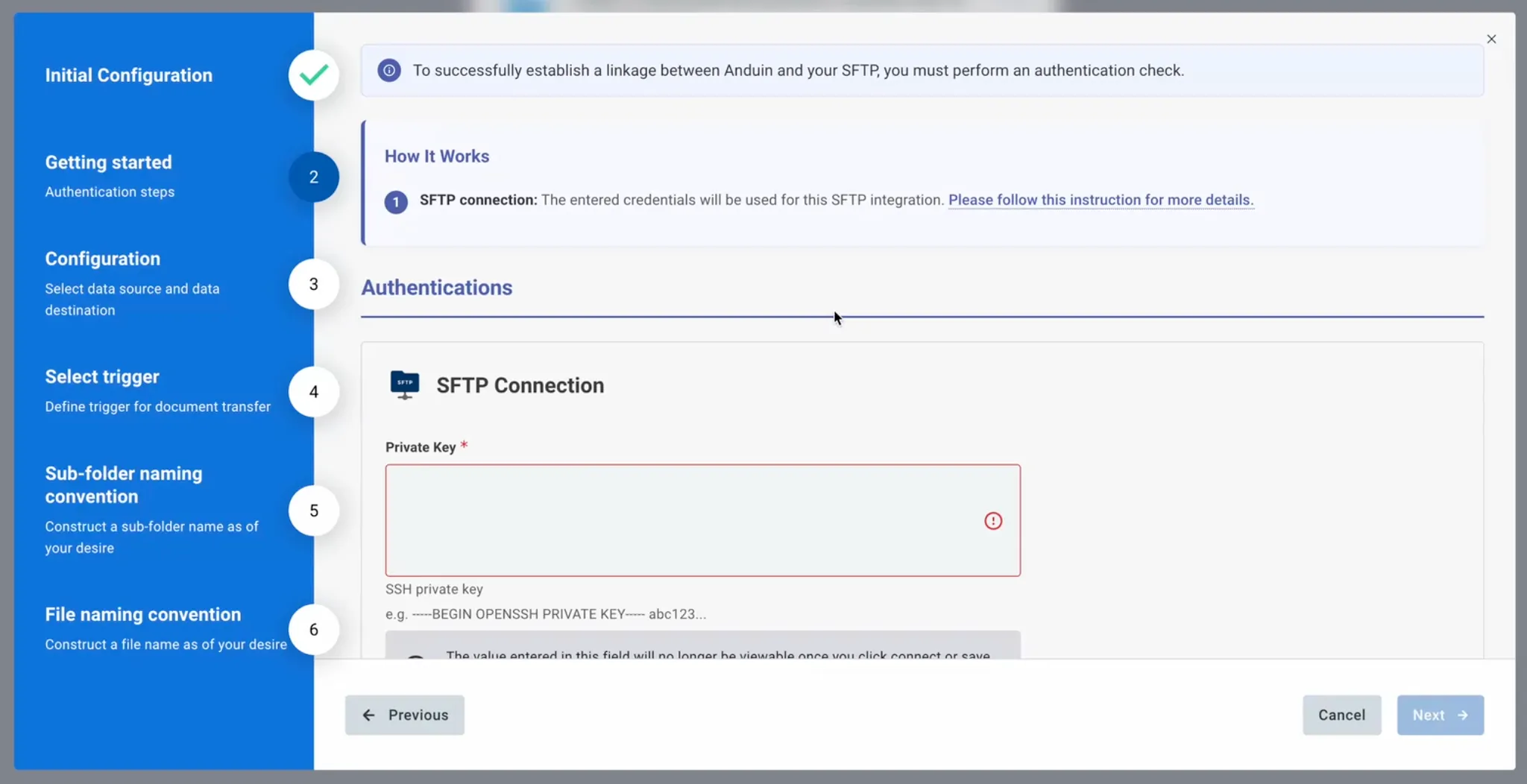
- Customer must retrieve and enter their SFTP credentials
4.2 Anduin app requirements
Permission to fund
The user must either:
- Have admin access to the intended funds, or
- Know a team member with admin access who can grant the necessary permissions during setup
Integration logic
The integration follows a “Trigger and Bundle” approach. Files are transmitted only after meeting a defined “Definition of Done”, and are always delivered as a single ZIP package rather than as fragmented files.
Trigger Conditions & Workflow
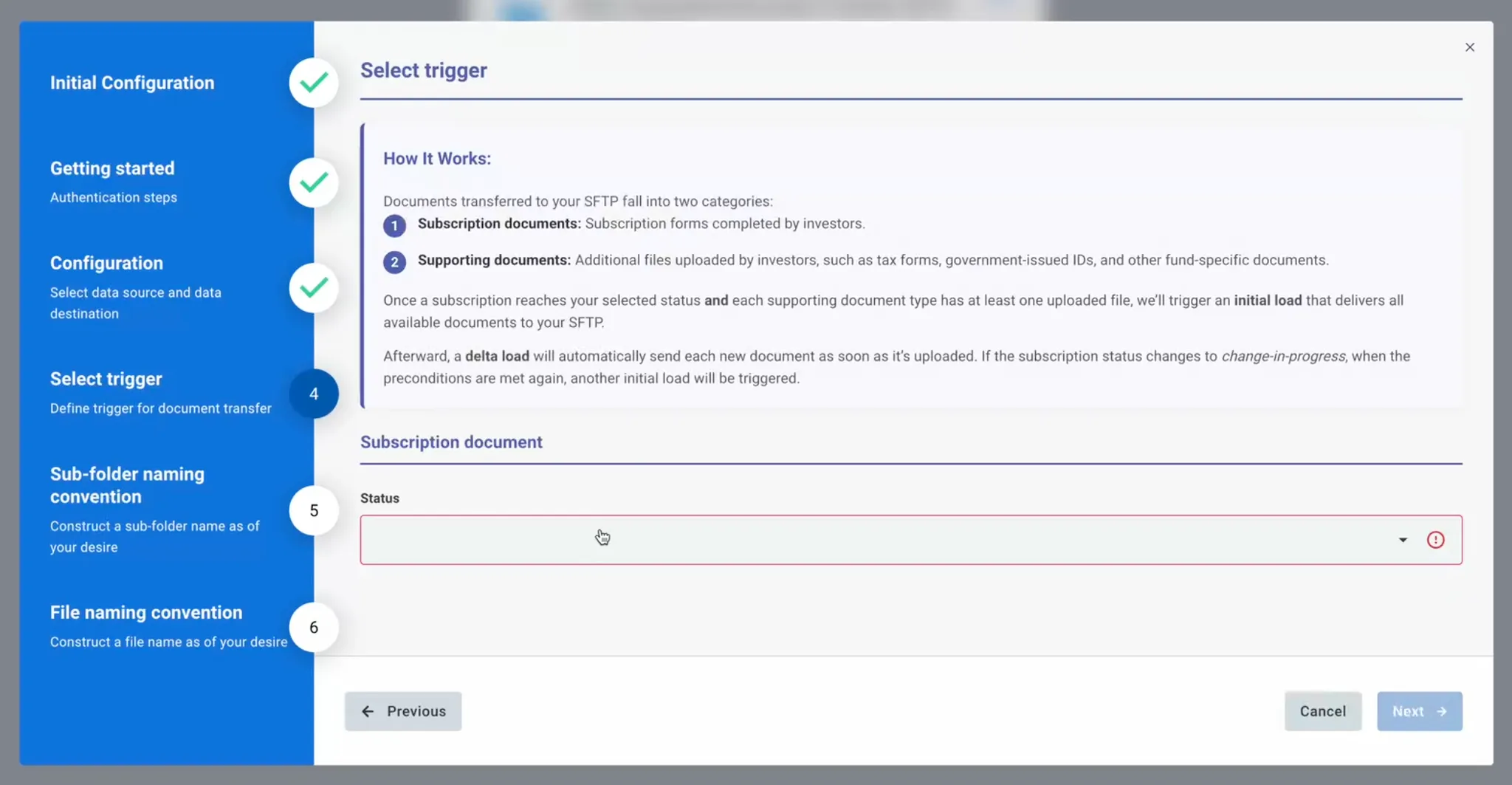
- Initial Execution: Data transmission is triggered once a subscription reaches a predefined (configurable) status. In addition, a key prerequisite must be met: each supporting document category must contain at least one valid upload.
- Sequential Updates: After the Definition of Done is met, if an investor uploads a new version of a document or submits a previously missing file, the integration will trigger again. Each run repackages the complete document set and re-sends it to ensure your SFTP repository remains fully up to date.
If any supporting document category is marked as N/A or Not Provided, the Definition of Done cannot be achieved. As a result, the integration will not be triggered.
Packaging and Pathing
- ZIP Compression: For transfer efficiency, all documents associated with a single subscription are compressed into one ZIP per trigger event.
- SFTP Directory Structure: The standard delivery is to the root directory, though the system supports a
root + configurable pathsetup. You can utilize a/convention to maintain the root as the primary landing zone. - Optional Hierarchy: The logic supports the creation of master folders or subscription-specific sub-folders using prefixes, though these can be bypassed to maintain a flatter file structure
Naming convention
Precision in naming is vital for SS&C's downstream processing. The integration employs a strict hierarchical naming schema for both the container and the individual contents
The ZIP Container (The "Package")
The outer ZIP file must follow this specific string format to be recognized by the receiving system:
ALTSNIFI.ASWI.[Biz Area].[TPA Code].[Tranx Type].[Unique Trade ID].[Timestamp].[Extension]
- Static Identifiers:
ALTSNIFI.ASWI(Hard-coded) - Business Area: A configurable field. Please enquire SS&C to collect your correct code
- TPA code: Hard coded to AN to represent Anduin
- Transaction Type: Set to
SUBfor subscriptions. WhilePUR(Add-on Purchases) is planned for future logic, it is currently excluded. - Unique Trade ID: The Anduin order ID, which must be sanitized to exclude dots and capped at 32 characters.
- Temporal Stamp: A granular
YYYYMMDDHHMMSStimestamp to ensure file uniqueness.
Example of a zip name: ALTSNIFI.ASWI.OFICARLYLE.AN.SUB.ol4yvyo3k4rr0plm97lw519r.20250211110001.zip
The Files (The "Contents")
All files follow the format below:
ASWI.[BusinessArea].[TPA/WirehouseCode].[TransactionType].[DocumentType].[DocumentIndex].[UniqueTradeId].[Timestamp].[FileExtension]
- The first segment,
ASWI, is hard-coded - The BusinessArea identifies the relevant client or business unit and is configurable.
- The TPA/WirehouseCode identifies the receiving entity and is currently hard-coded:
ANfor Anduin - The TransactionType set to
SUBfor subscriptions. WhilePUR(Add-on Purchases) is planned for future logic, it is currently excluded. - The DocumentType differentiates between core subscription documents and supporting materials. It follows conditional logic:
SUB– Main subscription package documentsCER- Subscription certificates of signaturesOTH– Supporting documents (e.g., passport, tax forms, additional materials)
- The DocumentIndex is a three-digit, zero-padded numeric sequence:
- Format:
000,001,002, etc. - Indexing is sequential within each DocumentType
- Indexing resets per generated package
- Main documents (
SUB) and supporting documents (OTH) maintain independent indexing sequences.For example, in an initial submission package:
- Main documents
SUB.SUB.000→ subscription documentSUB.CER.000→ certificate
- Supporting documents
SUB.OTH.000→ passport 1SUB.OTH.001→ passport 2SUB.OTH.002→ tax document 1SUB.OTH.003→ tax document 2
If a second package is generated because the investor uploads an additional supporting document, indexing is recalculated within that package:
- Main documents (re-generated)
SUB.SUB.000SUB.CER.000
- Supporting documents (re-sequenced)
SUB.OTH.000→ passport 1SUB.OTH.001→ passport 2SUB.OTH.002→ newly uploaded passportSUB.OTH.003→ tax document 1SUB.OTH.004→ tax document 2
- Main documents
- Format:
- The UniqueTradeId represents the Anduin Order ID and ensures transaction-level traceability:
- Maximum 32 characters
- Must not contain dots (
.)
- The Timestamp captures the file generation time using the format:
YYYYMMDDHHMMSS- Example:
20260211130545
- The FileExtension reflects the file format (e.g.,
pdf,zip).
Example of a file name: ASWI.OFICARLYLE.AN.SUB.SUB.000.ol4yvyo3k4rr0plm97lw519r.20250211110001.pdf
5. Pre-Setup Checklist
| Task | Owner | Anduin’s guide |
|---|---|---|
| Permission to Anduin funds | Customer | |
| SFTP credentials | Customer | https://developers.anduintransact.com/docs/authentication-2 |
| Integration logic & Naming convention | Customer, consulted by Anduin | See section 4.2 |
6. Step-By-Step Setup Guide
6.1 Grant access to the Integration Hub
- Customers need to contact their Implementation manager to ensure they have access to the Integration Hub and this specific integration
6.2 Locate the solution
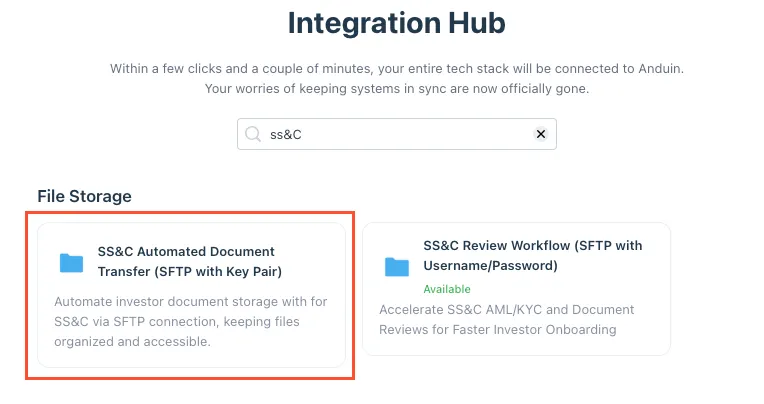
- In the Browse tab of the Integration Hub, the customer can locate the SS&C Automated Document Transfer (SFTP with Private Key) or SS&C Automated Document Transfer (SFTP with Username/Password) solution, depending on their authentication method.
6.3 Install the solution
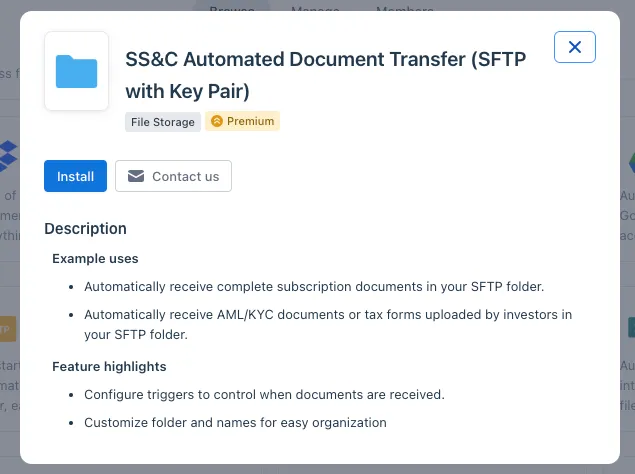
- Step 1: Click Install to begin setup
-
Step 2: Name the Integration
- Suggest a clear, descriptive name (e.g., “SFTP - Tax Files [Fund Name]”)
- Click Next: Link to Anduin objects
-
Step 3: Grant integration permission to customer’s intended objects (funds)
-
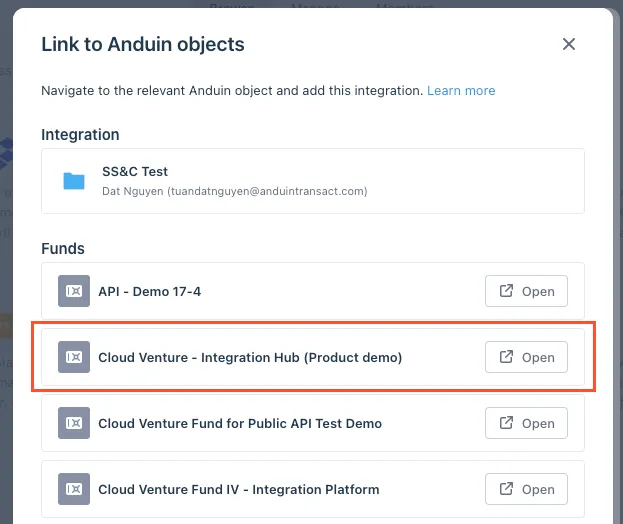
Step 3.1: A list of accessible Anduin objects (e.g., Funds) will appear
-
Step 3.2: Click Open next to the relevant fund
- Step 3.3: In the permission module, find the integration name and click Add
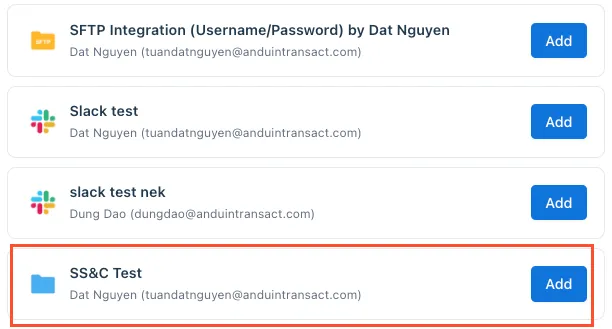
- Step 3.4: Return to the Integration Hub - the fund should now show a “Linked” tag
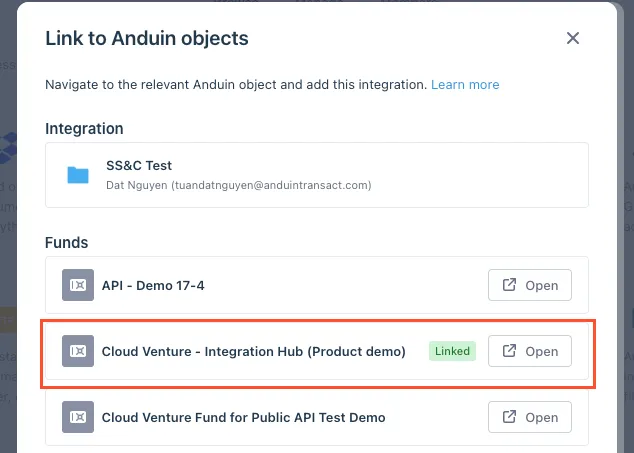
If the target fund is not listed, there are 2 options
- Customer needs to be added with admin role for that fund, then return to the step 3.2. Customer should be able to see the target fund there
- Customer requests their team member who has admin role in that fund to perform step 3.3 using Settings > Integrations in the FundSub app and they can continue with step 3.4
-
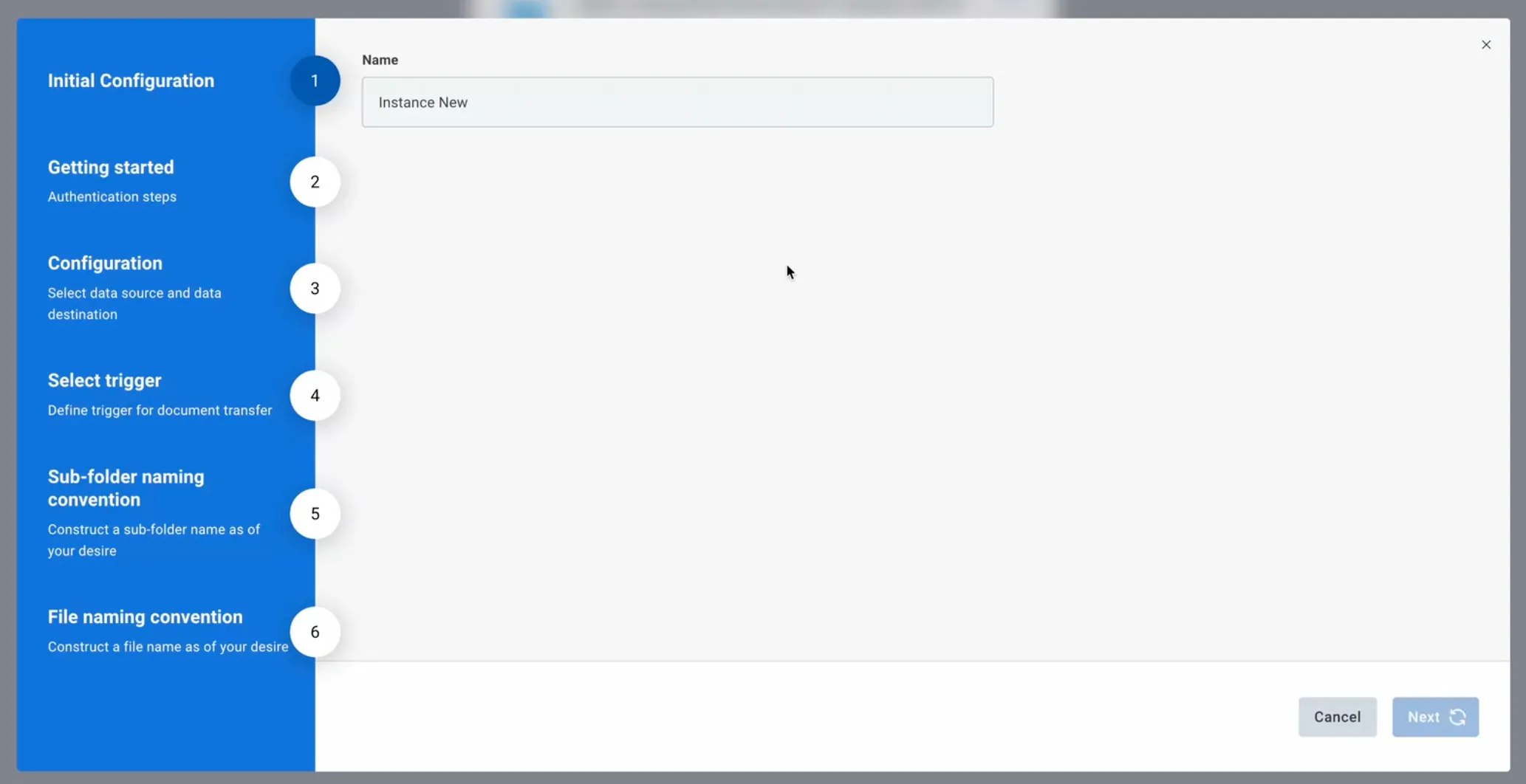
6.4 Configure the solution
- The customer may rename the integration or proceed as-is
- Enter SFTP credentials
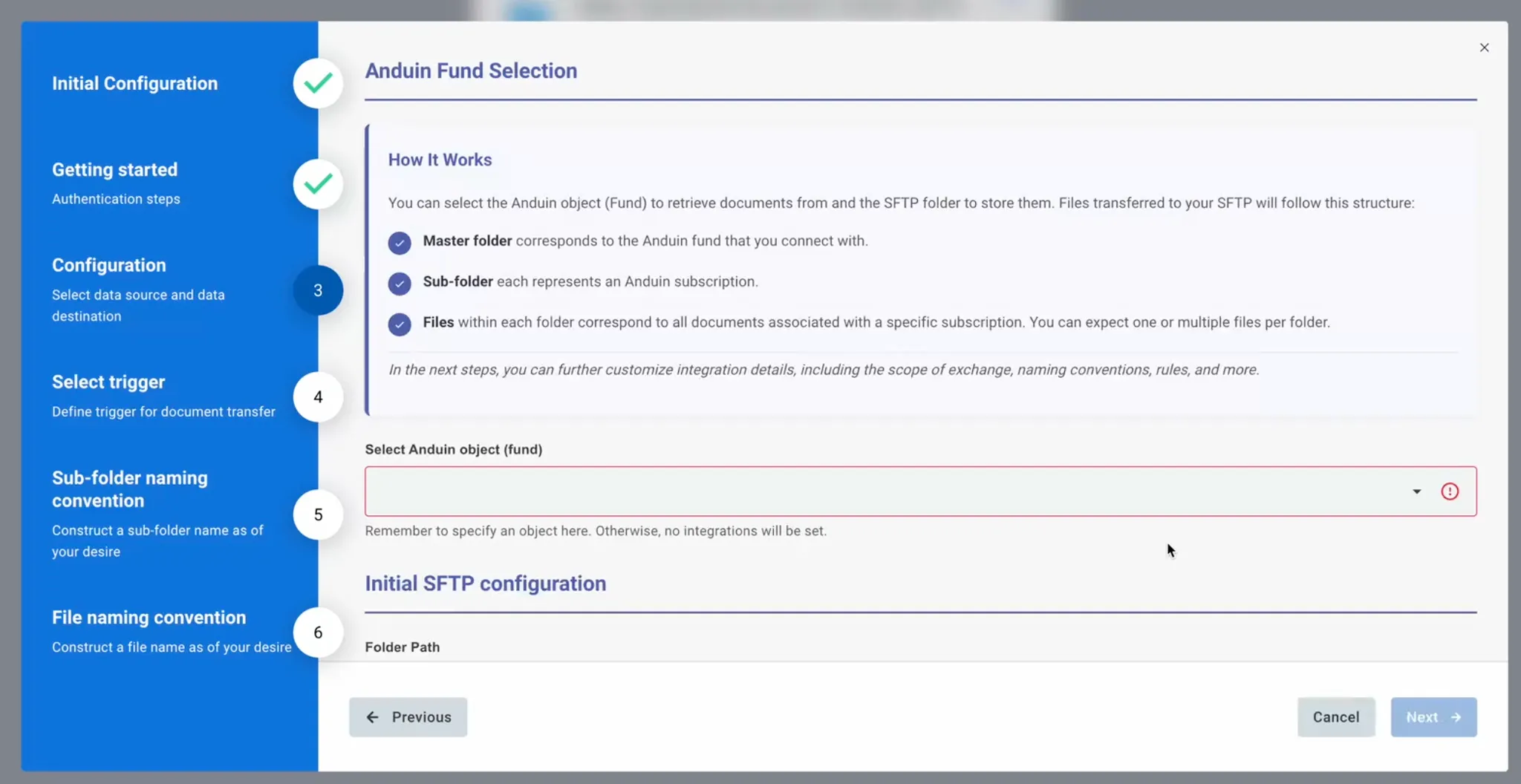
- Select a connected Anduin fund and the target SFTP folder you want to create a connection between
-
Configure the trigger
-
Please refer to section 4.2 on detailed integration logic and how trigger should be set here
-
-
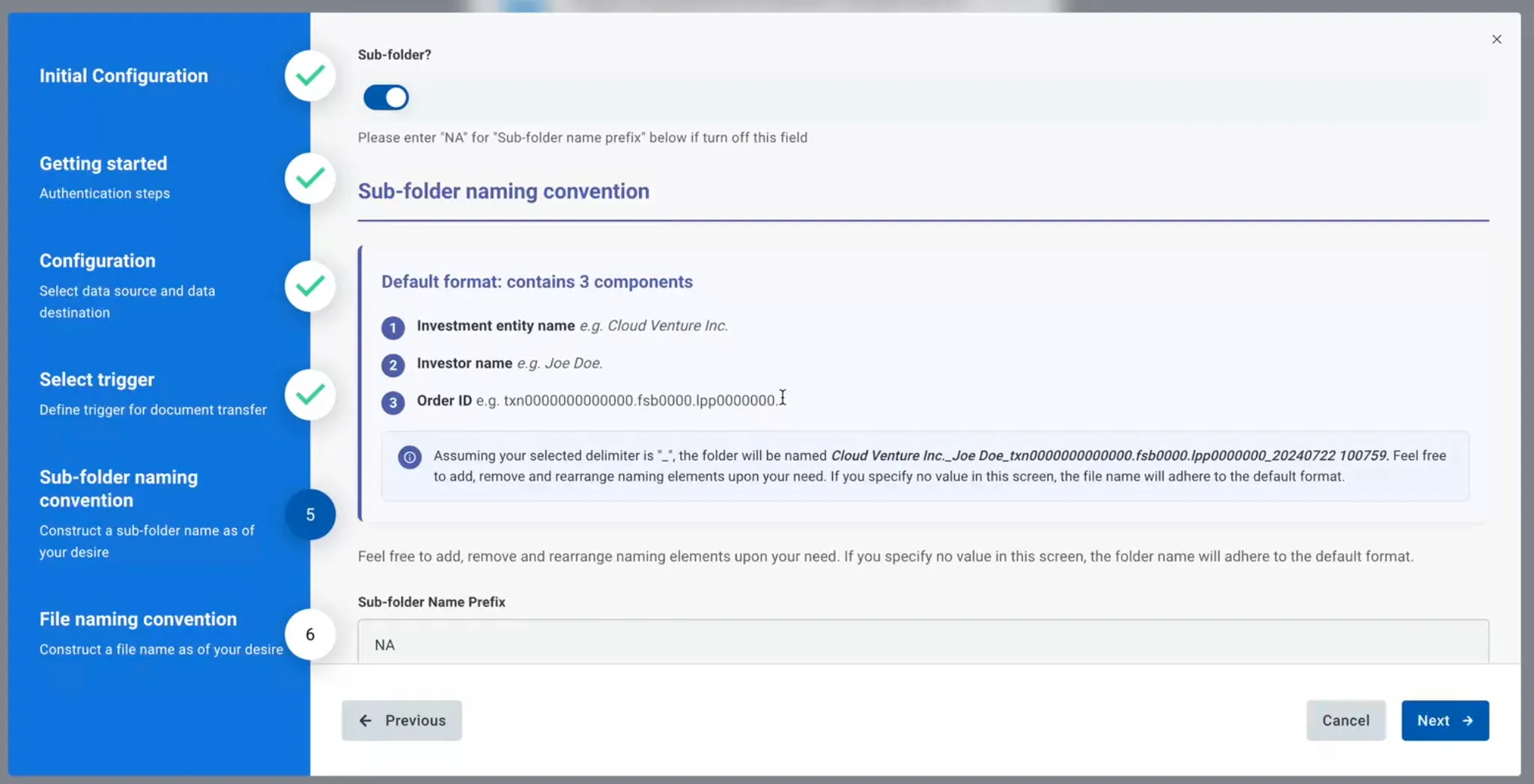
Configure sub-folder naming convention
-
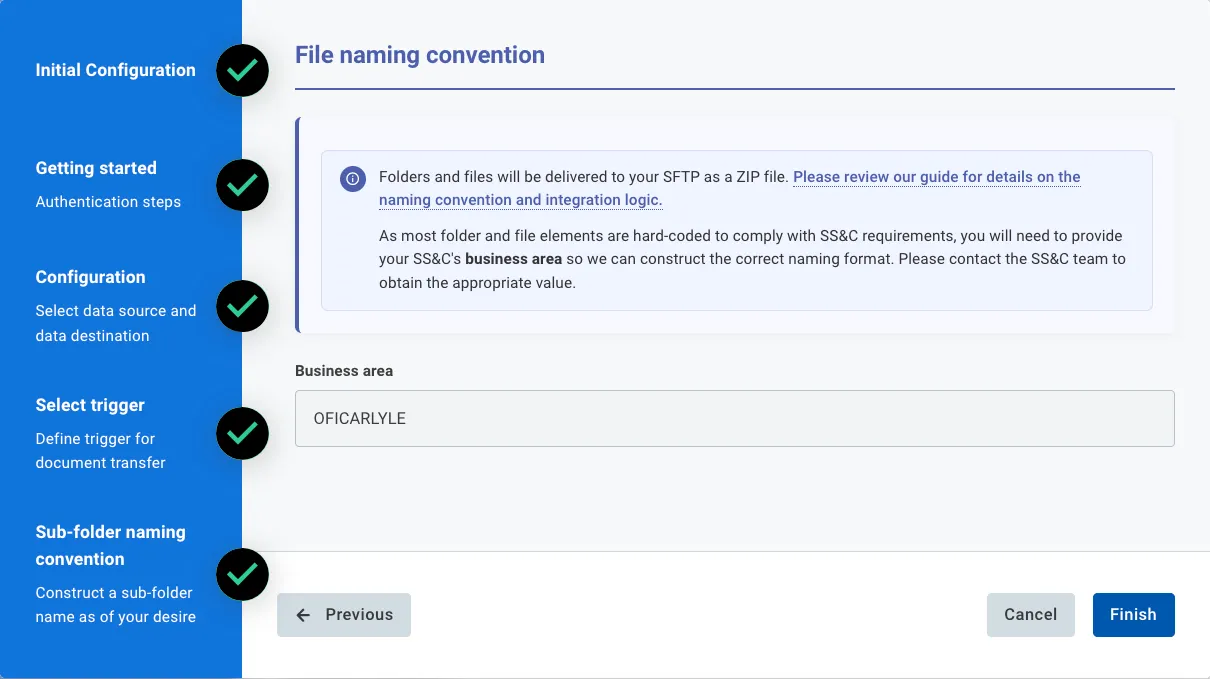
Configure the file naming convention
- The business area is the only part you need to configure. Please coordinate with your SS&C team to obtain this information.
- All other naming elements are automatically managed by Anduin’s integration logic to comply with SS&C requirements and ensure seamless processing.
6.5 Validate the solution -
Fill out the subscription agreement and move it to the predefined status. Then upload at least one file under each enabled supporting document type.
-
Verify that the complete document package is delivered to the correct folders in the SFTP destination.
Updated 8 months ago