
BNY Review Workflow
1. Purpose
Automate the transfer of BNY's AML/KYC review results and document deficiency data into the FundSub dashboard — eliminating the need for manual data entry between systems. Because BNY cannot log into Anduin directly, their processing outputs (Trade Tracker and Deficiency Tracker) are deposited on BNY's SFTP. This integration polls those files on a schedule, ingests the data, and surfaces it directly on the GP's FundSub dashboard so teams can act on BNY's findings without leaving the platform.
2. Key Benefits & Features
- Centralized status tracking: Bring BNY's Trade Tracker and Deficiency Tracker results directly into FundSub for consistent workflows, oversight, and audit readiness.
- Deficiency visibility without context-switching: GPs see BNY's document-level deficiency findings — grouped by category — directly on their FundSub dashboard, so issues can be actioned immediately.
- Automatic status reset: When BNY marks an order as Accepted in the Trade Tracker, any associated deficiency note columns are automatically cleared — keeping the dashboard current without manual cleanup.
- Timestamp-based incremental processing: Only rows with a newer timestamp than the last processed run are re-ingested, avoiding redundant updates and reducing noise.
- Time savings at scale: Removes repetitive administrative work for fund managers handling multiple subscriptions across BNY-administered funds.
3. Potential Customer Personas
- Any FundSub customer whose funds are administered by BNY.
- Particularly valuable for teams managing large subscription volumes who want to avoid manually checking BNY's SFTP outputs and re-entering status data into FundSub.
4. Prerequisites
4.1 Third party app requirements
- SFTP Credentials: Customers must provide valid SFTP credentials (key pair) for BNY's SFTP server, including host, port, directory path, username, and private key.
- BNY tracker file: Confirm with BNY the exact file path and sheet names for the Trade Tracker and Deficiency Tracker outputs deposited on the SFTP.
4.2 Anduin app requirements
Permission to Fund
- Fund access — the user must either:
- Have admin access to the intended funds, or
- Know a team member with admin access who can grant the necessary permissions during setup
Custom column setup
- Note column on FundSub dashboard — a Note-type custom column that the integration will write deficiency data to must be created and added to the FundSub dashboard before the integration runs. The integration will fail to update a column that does not yet exist.
Integration logic
Model Overview
This integration follows a scheduled file-based synchronization model. It operates through periodic polling rather than real-time event triggers.
At predefined intervals, the system:
- Connects to BNY's SFTP server
- Reads the configured Excel file (.xlsx or .xls)
- Processes the anchor sheet (Trade Tracker) first to establish order matching
- Processes the children sheet(s) (Deficiency Tracker) using the established key lookup
- Pushes data into FundSub as metadata updates and/or formatted Note-type custom columns
Supported Report Types
The integration processes an Excel workbook containing two types of sheets:
- Trade Tracker (Anchor Sheet) — the primary dataset. Contains one row per subscription with BNY's processing status (e.g., Accepted, Pending_review, Verified) and IGO indicator. This sheet is processed first and serves as the key lookup source — the Anduin Trade ID column on this sheet is used to match BNY records to FundSub subscriptions.
- Deficiency Tracker (Children Sheet) — the supplementary dataset. Contains one row per deficiency per subscription, with deficiency category, error, and reason. Multiple deficiency rows can link to a single order. This sheet is matched via a composite key (Anchor Fields) resolved through the key lookup built from the Trade Tracker.
Empty sheets (containing no data rows) are not processed.
File Format & Path
The integration reads a single Excel file (.xlsx or .xls) from a configured SFTP path. The file path must be exact and must include the filename. Example: /reports/bny_tracker.xlsx
Timestamp-Based Incremental Processing
To avoid reprocessing already-ingested rows, the integration uses a per-sheet timestamp column. A row is only processed if its timestamp value is newer than the last cached timestamp for that order. This applies to both the anchor sheet and children sheets where a timestamp column is configured.
Output Types
The integration supports two output types for pushing data into FundSub:
- Metadata type — maps Excel column values directly to FundSub metadata fields. Suitable for simple status values such as BNY Status and IGO indicator from the Trade Tracker.
- Note type — maps Excel columns to FundSub custom Note-type columns, rendered as a formatted bullet hierarchy. Used for Deficiency Tracker data where multiple deficiencies per order need to be consolidated into a single readable field. The bullet levels (Top, Second, Third) correspond to Deficiency Category → Error → Reason.
Status-for-Note Reset
When a row on the anchor sheet matches a configured condition (e.g., Status = "Accepted"), the corresponding Note-type dashboard columns for that order are automatically cleared. This ensures deficiency notes are wiped when BNY marks the subscription as fully processed.
Processing Flow per Polling Cycle
Step 1 – Connect to SFTP and read the file
- Connect to the configured SFTP path and read the Excel workbook
Step 2 – Process the Anchor Sheet (Trade Tracker)
- Filter rows by timestamp cache (skip already-processed rows)
- Build the key lookup table: Anchor Fields → Anduin Trade ID
- Clear Note-type columns for orders matching the status reset condition
- Sync configured metadata columns to FundSub
Step 3 – Process Children Sheet(s) (Deficiency Tracker)
- Filter rows by timestamp cache
- Match rows to FundSub orders using the key lookup table built in Step 2
- Sync metadata columns and/or formatted Note-type columns to FundSub
5. Pre-Setup Checklist
| Task | Owner | Note | Anduin guide |
|---|---|---|---|
| SFTP credentials (host, port, path, private key) | Customer, sourced from BNY | Step 1: Retrieve credentials for third-party apps | |
| Confirm Excel file path and sheet names with BNY | Customer + BNY | Exact path required, including filename | |
| Confirm Anduin Trade ID column name on the Trade Tracker sheet | Customer + BNY | Must match exactly | |
| Confirm Anchor Fields (composite key columns) on the Trade Tracker sheet | Customer + BNY | Used to match Deficiency Tracker rows to orders | |
| Confirm columns to sync as metadata and/or Note-type custom columns | Customer | Consulted by Anduin | See section 4.2 |
| Fund access | Customer | Consulted by Anduin |
6. Step-By-Step Setup Guide
6.1 Grant access to the Integration Hub
- Ensure you have access to the Integration Hub
6.2 Locate the solution
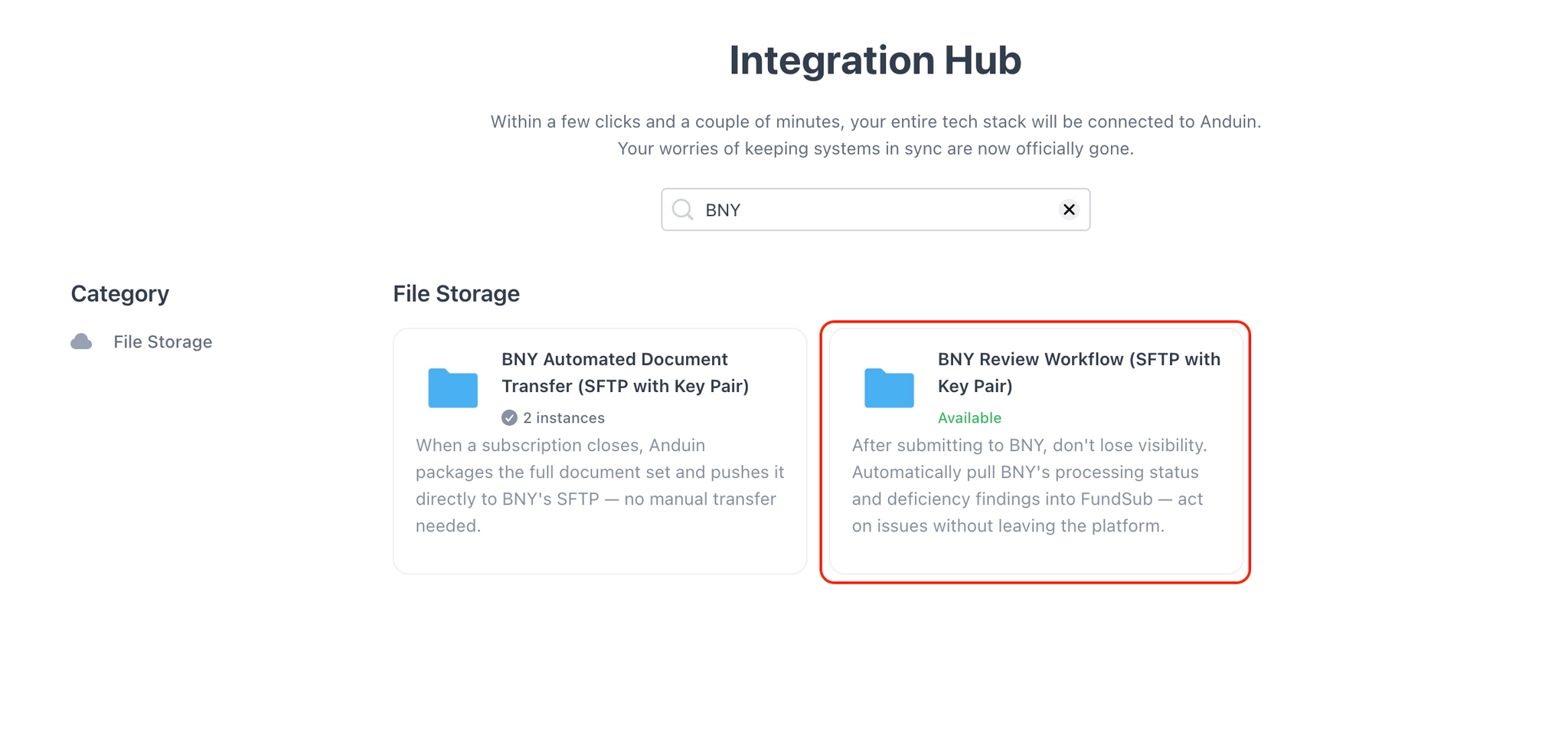
- In the Browse tab of the Integration Hub, the customer can locate the BNY Review Workflow (SFTP with Key Pair) solution
6.3 Install the solution
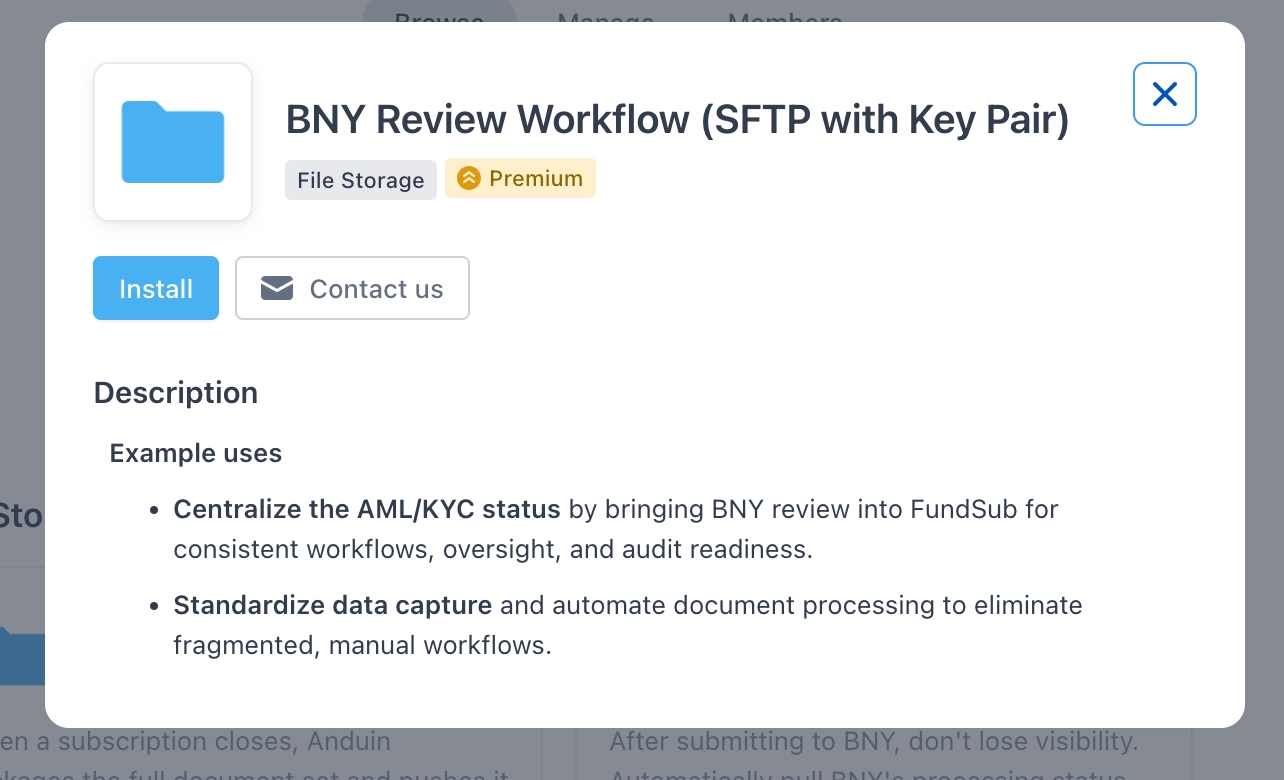
- Step 1: Click Install to begin setup
-
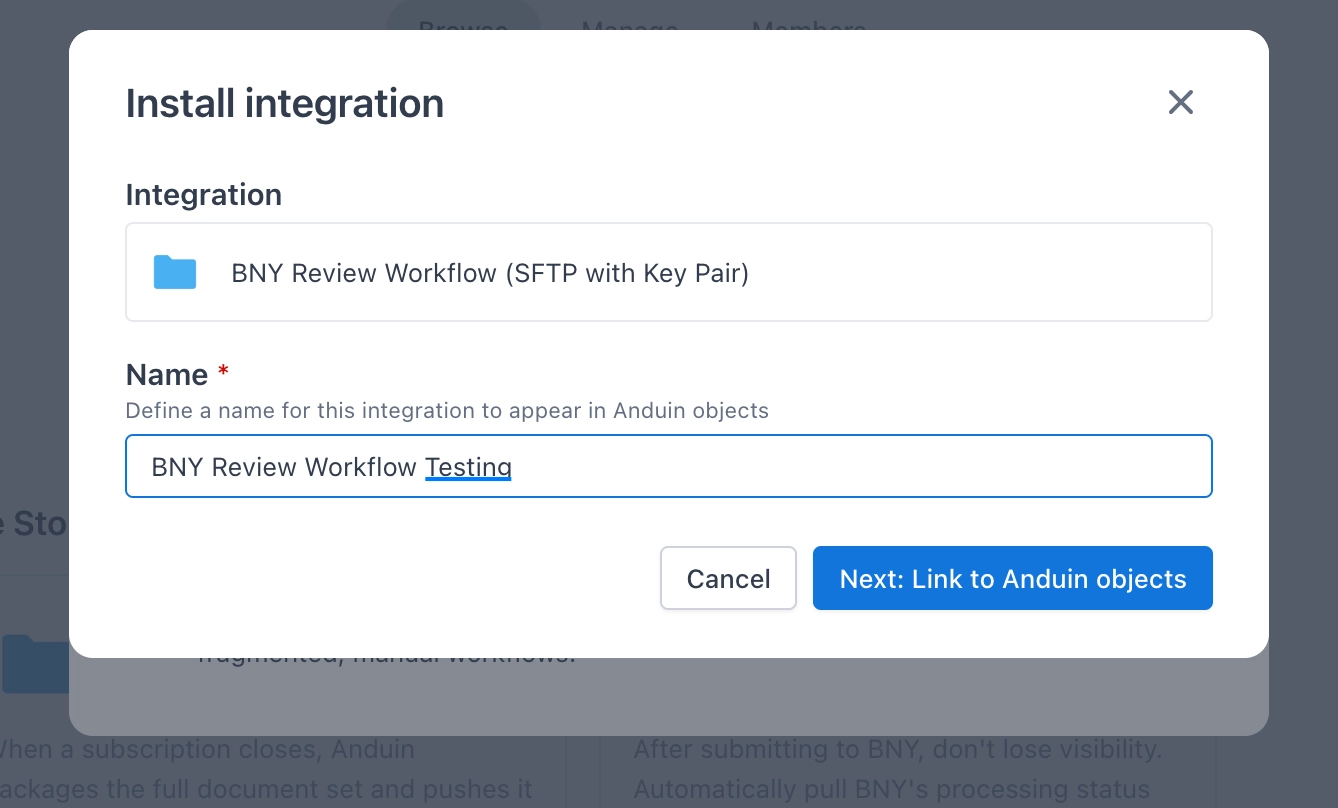
Step 2: Name the integration
- Recommend a clear and descriptive name (e.g., "BNY review setup by John Smith")
- Click Next: Link to Anduin objects
-
Step 3: Grant integration permission to the customer's intended funds
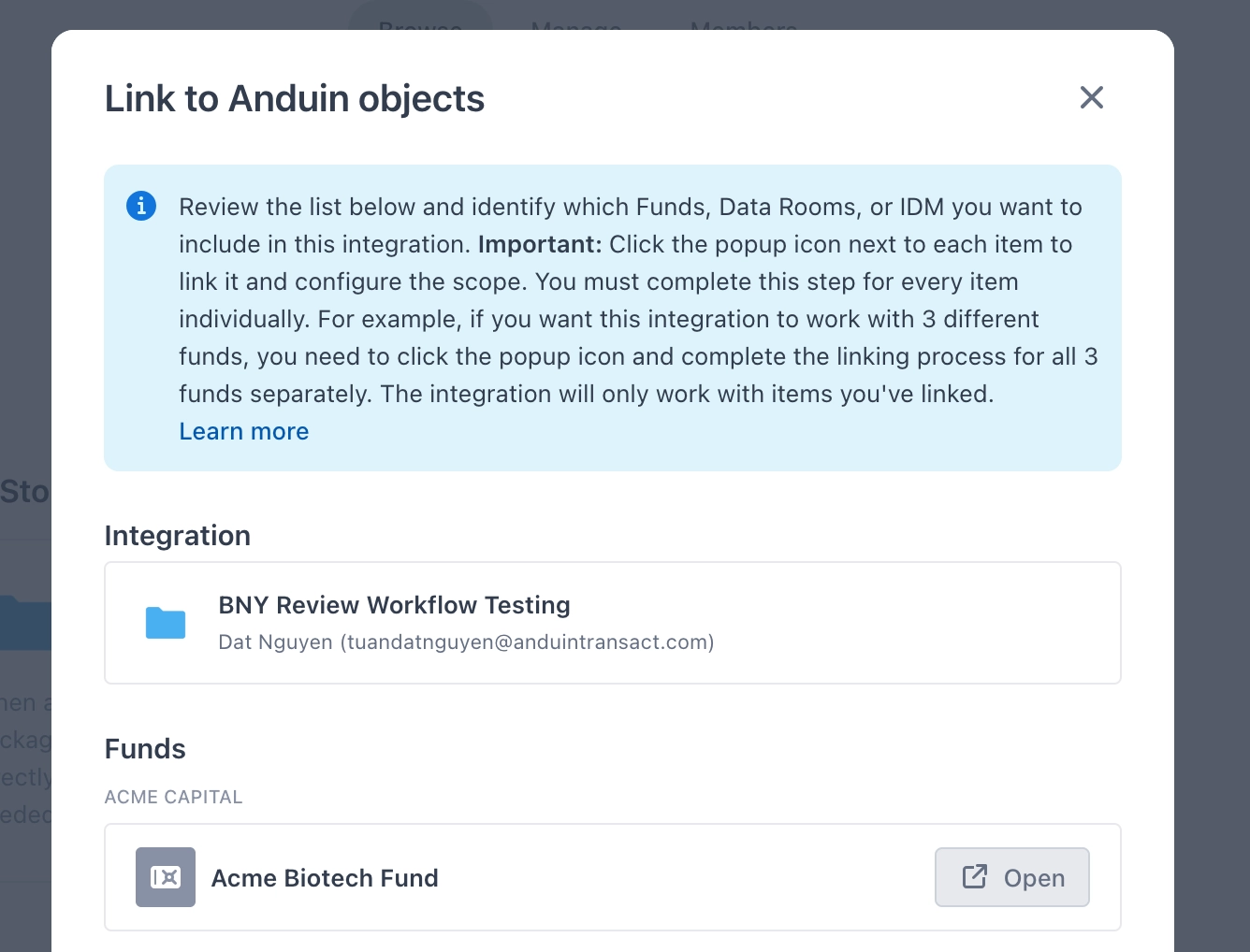
- Step 3.1: A list of accessible Anduin objects (e.g., Funds) will appear
- Step 3.2: Click Open next to the relevant fund
-
Step 3.3: In the permission module, find the integration name and click Add
-
Step 3.4: Return to the Integration Hub — the fund should now show a "Linked" tag
If the target fund is not listed, there are 2 options:
- Customer needs to be added with admin role for that fund, then return to step 3.2. The target fund should then appear.
- Customer requests their team member who has admin role in that fund to perform step 3.3 via Settings > Integrations in the FundSub app, and they can continue with step 3.4
6.4 Configure the solution
Initial Configuration
- The customer may rename the integration or proceed as-is
Getting Started — Authentication
- Enter SFTP credentials (host, port, username, private key) to establish the connection to BNY's SFTP server

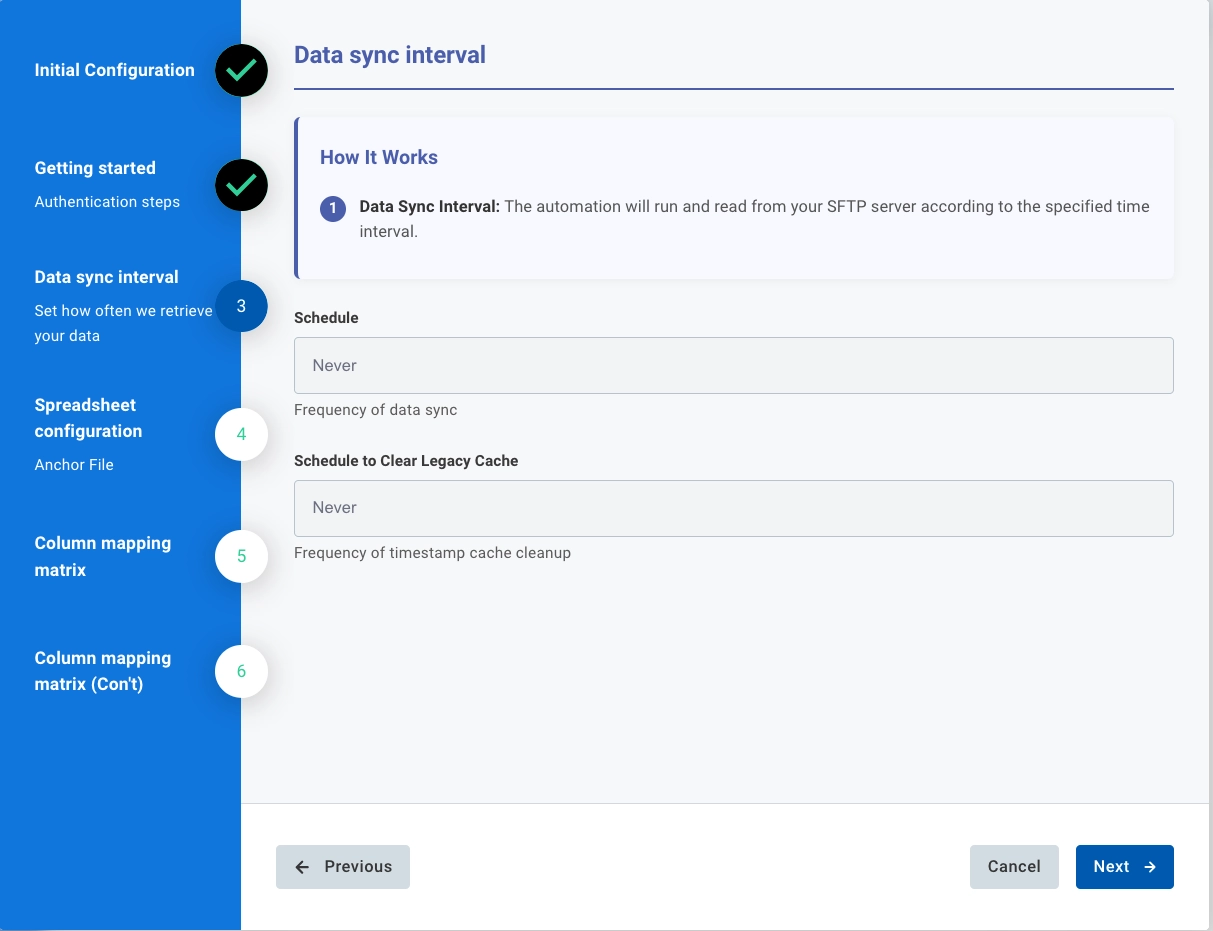
Data Sync Interval
- Specify the data sync frequency. The automation will connect to BNY's SFTP and process the tracker file according to this interval.
- Specify the legacy cache cleanup frequency. This runs a separate scheduled job that prunes stale cache entries for orders no longer present in the file, keeping the cache accurate over time.
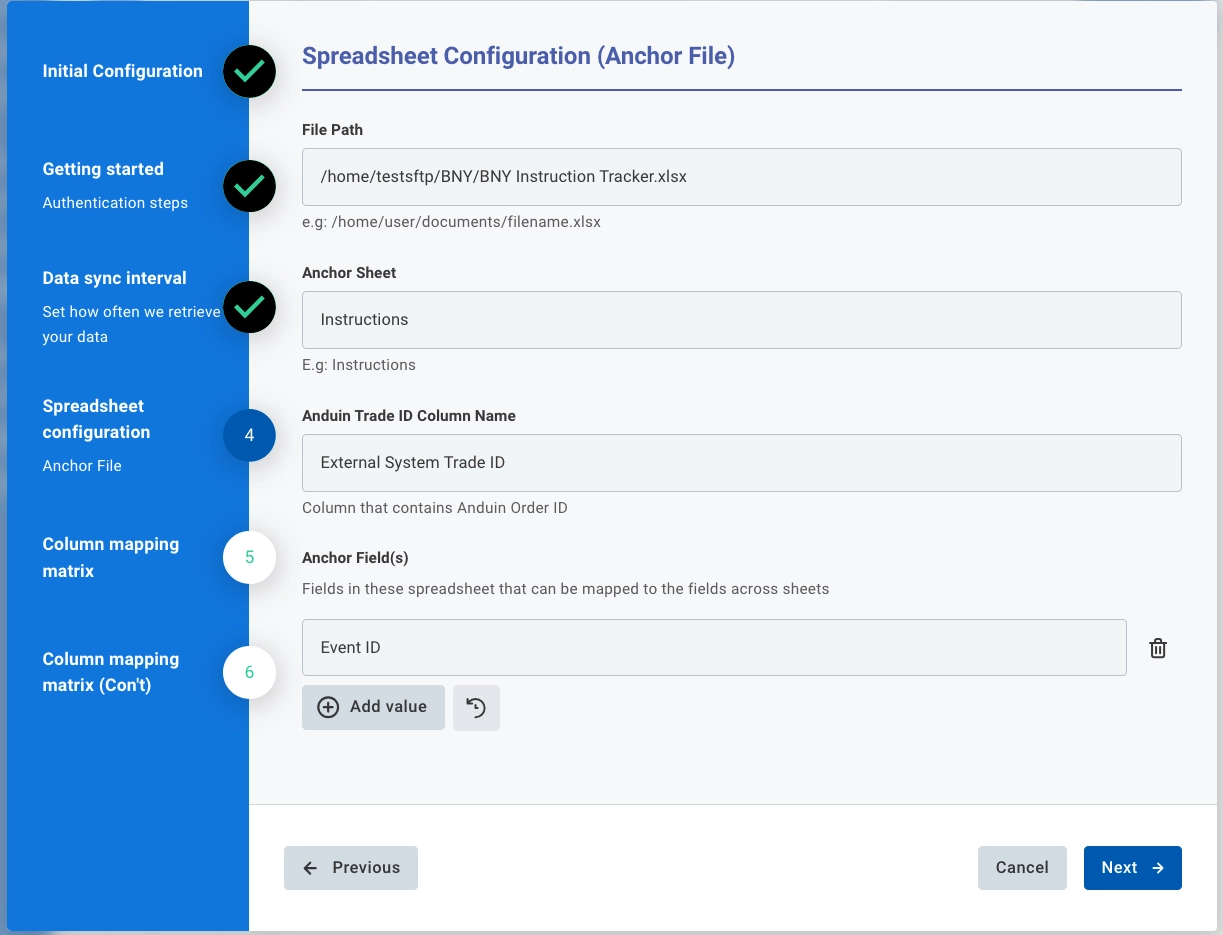
Spreadsheet Configuration (Anchor File)
Configure the anchor sheet — this is the Trade Tracker sheet and serves as the primary matching source.
- File Path — the full SFTP path to the Excel file, including filename (e.g.,
/reports/bny_tracker.xlsx). Must end in.xlsxor.xls. - Anchor Sheet — the exact name of the Trade Tracker sheet within the Excel workbook (e.g.,
Instructions). - Anduin Trade ID Column Name — the column in the anchor sheet that contains the Anduin Order ID. Used to match each BNY row to the correct FundSub subscription.
- Anchor Field(s) — the column(s) used to build the composite key for cross-referencing children sheets (e.g., Fund ID + Account ID). These same fields must also be present in the Deficiency Tracker sheet.
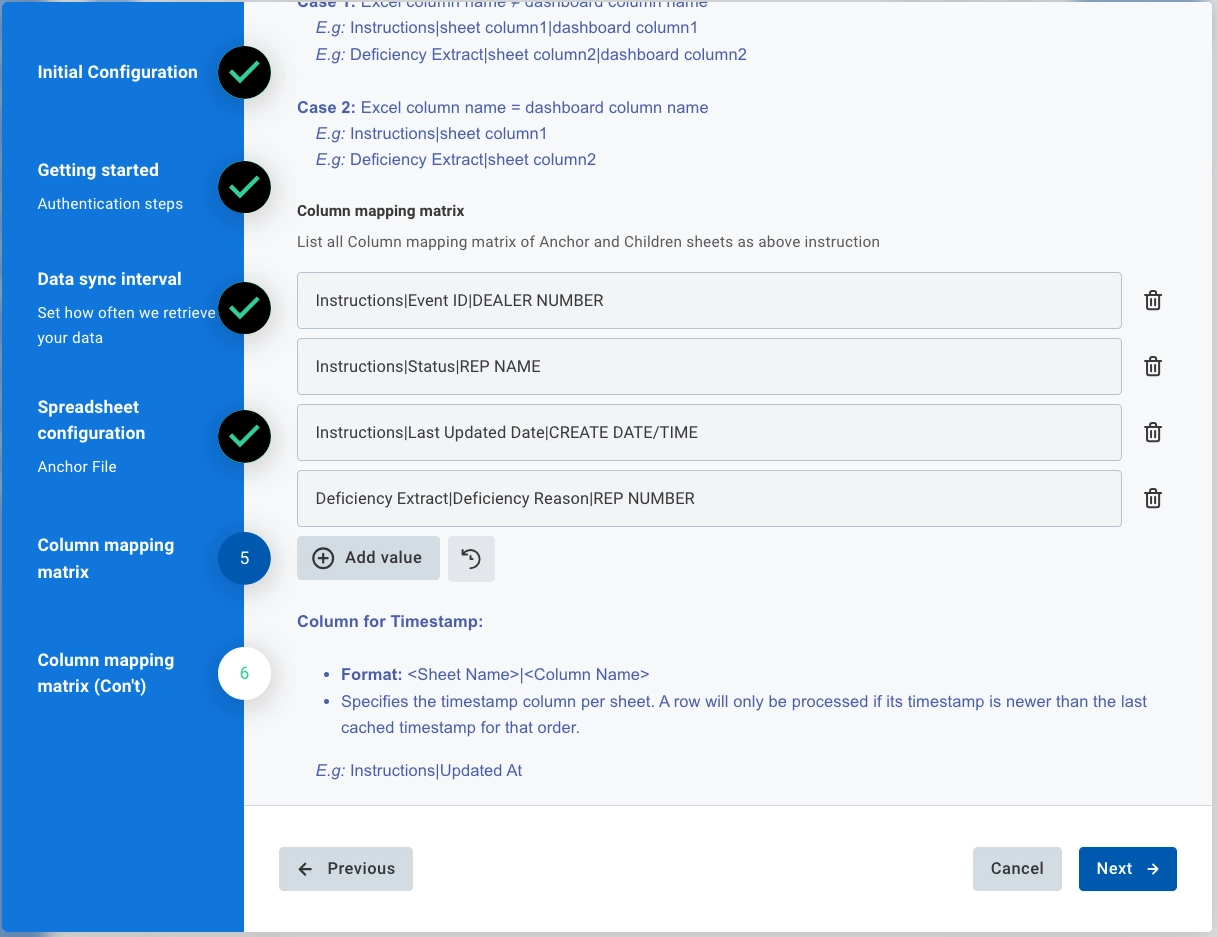
Data Mapping (For Metadata Type)
Map Excel columns to FundSub metadata dashboard columns. Use this for simple value fields such as BNY Status and IGO indicator from the Trade Tracker.
- Column mapping matrix — specify which columns to sync and where they should appear on the FundSub dashboard. Format:
<Sheet Name>|<Excel column>|<Dashboard column>. If the Excel column name and dashboard column name are the same, the dashboard column can be omitted:<Sheet Name>|<Excel column>. - Column for Timestamp — specify the timestamp column per sheet for incremental processing. Format:
<Sheet Name>|<Column Name>. Only rows with a timestamp newer than the last cached value will be processed. Example:Instructions|Updated At
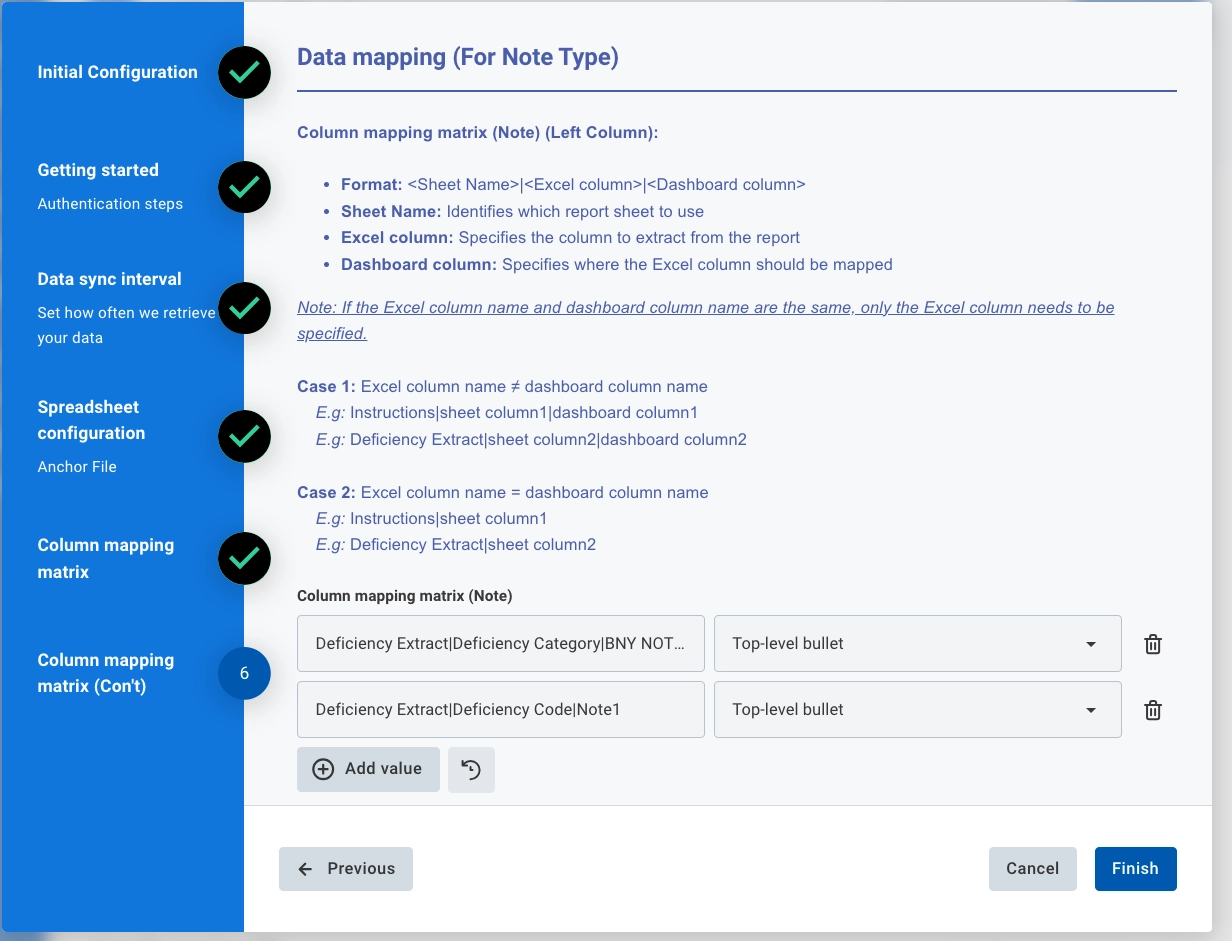
Data Mapping (For Note Type)
Use this section for the Deficiency Tracker data, where multiple deficiency rows per order need to be consolidated into a single formatted Note column on the FundSub dashboard.
- Column mapping matrix (Note) — map Excel columns to a Note-type custom column using a three-level bullet hierarchy. Each entry uses the same
<Sheet Name>|<Excel column>|<Dashboard column>key format, with the value set to one of:Top-level bullet,Second-level bullet, orThird-level bullet. Typical mapping: Deficiency Category → Top-level, Deficiency Error → Second-level, Deficiency Reason → Third-level. - Status for Note reset — configure the condition under which a Note column should be automatically cleared. When a row on the anchor sheet matches the specified condition, the target Note column is wiped for that order. Format — Condition key:
<Sheet Name>|<Excel column>|<Value>, Dashboard column value: the Note column to clear. Example:Instructions|Status|Accepted→ clears the Deficiency Note column when BNY marks the subscription as Accepted.
6.5 Validate the solution
Once configuration is complete:
- Wait until the next scheduled sync interval, or trigger a manual run
- Verify that:
- Configured metadata columns (e.g., BNY Status, IGO indicator) appear in the FundSub dashboard and are correctly matched to subscriptions
- Deficiency Note columns display the correct grouped bullet structure (Category → Error → Reason)
- For any orders marked as Accepted by BNY, the deficiency Note column has been cleared
If the automation runs end-to-end correctly, the setup is successfully validated.
Updated 5 months ago