
Retrieve subscription documents (Multi-funds)
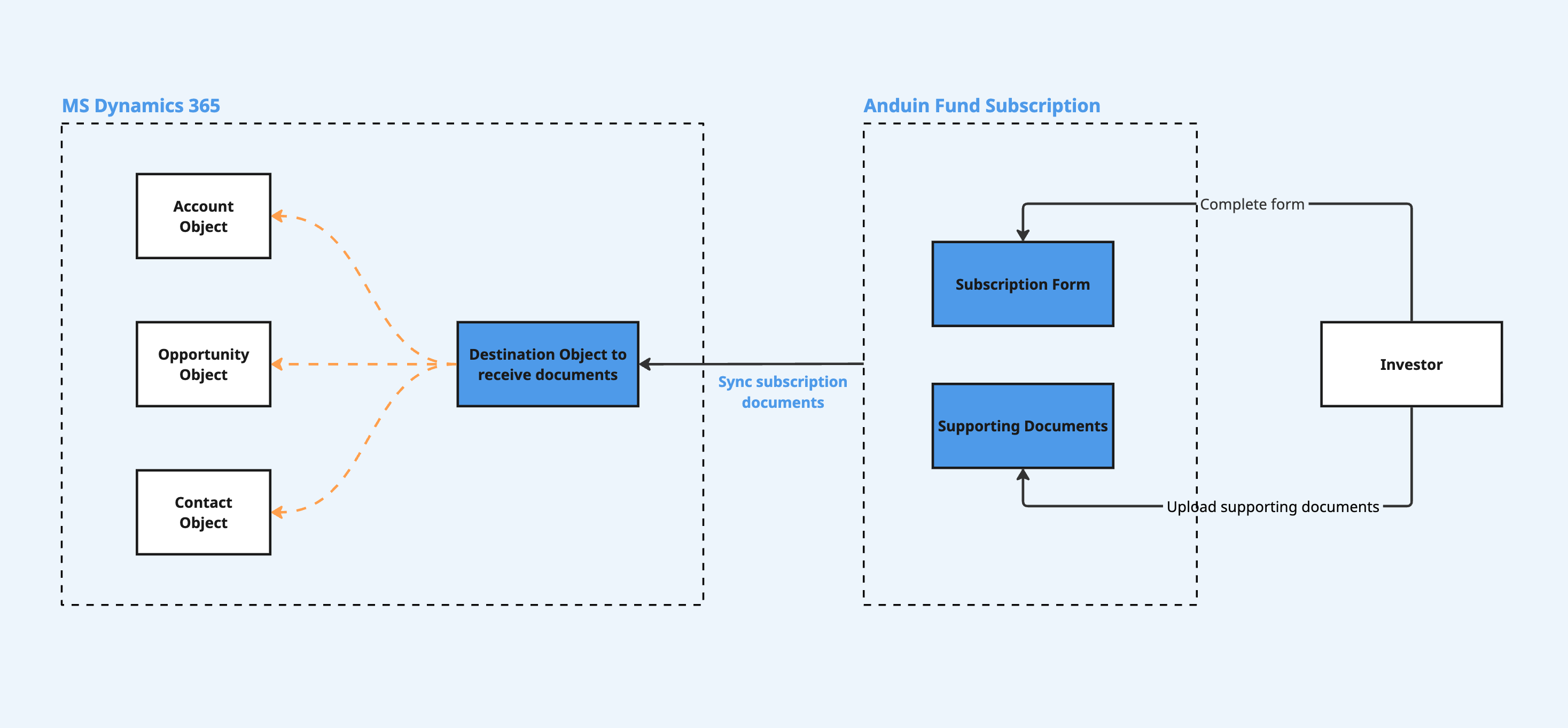
Automatically sync subscription and supporting documents from FundSub to the customer's Microsoft Dynamics 365, eliminating manual downloads and ensuring records are complete and up to date.
1. Purpose
Keep your Microsoft Dynamics 365 updated with investor documents automatically transferred from Anduin across multiple funds, keeping every record complete and accurate without the manual work.
2. Key Benefits & Features
- Establishes Microsoft Dynamics 365 as the central repository for all investor documents. The IR, Compliance, and Accounting teams can trust that records reflect the final, signed subscription agreements and all associated supporting files.
- Eliminates repetitive administrative work and dramatically reduces the risk of missing or mismatched documents.
Example uses
- Keep your Microsoft Dynamics 365 system updated with a secure, automated transfer of all subscription and supporting documents.
- Streamline the downstream delivery of documents to relevant departments with ease and precision.
Feature highlights
- Precisely define the Anduin fund and Microsoft Dynamics 365 table for document exchanges, ensuring seamless integration.
- Set specific trigger points for subscription document exchanges to align with your workflow.
- All supporting documents are automatically transferred, keeping your records complete without manual selection.
3. Target Personas
- Valuable for any FundSub customer using Microsoft Dynamics 365 as their CRM
- Especially useful for firms that need to sync high volumes of documents across multiple funds
4. Prerequisites
4.1 Third-party app requirements (Microsoft Dynamics 365)
- App Registration (Azure AD / Entra ID)
- Understand the concept: Defines how external applications (like Anduin) connect to Dynamics 365 via OAuth 2.0. Customers must register an app in the Azure portal (Entra ID), which generates the credentials needed for the integration.
- Credentials: Customers must create an app registration and provide the necessary credentials during setup.
- Permissions: The registered app must be granted appropriate Dynamics CRM API permissions in Azure and assigned a security role in the Dynamics 365 environment.
- Client Secret expiry: Azure AD client secrets have a maximum lifetime of 24 months. Customers must rotate secrets before expiry to avoid integration disruption.
- Entity (Table) management: When configuring the integration, the table name entered in the Anduin Integration Hub becomes the Display Name in Dynamics 365. Anduin internally derives a Schema Name from this using a fixed naming convention. Once a table is created, its Schema Name is permanent and cannot be modified.
- If a table with the matching Schema Name already exists, the integration will push documents to that existing table.
- If no match is found, the integration will automatically create a new custom table.
- ⚠️ Do not modify this table's column types after setup. Changing column types may break the sync.
- Field name limit: Microsoft Dynamics 365 enforces a 50-character maximum on column names. If a field name exceeds 50 characters, Anduin will automatically hash the middle portion to bring it within the limit. The full original field name will be preserved in the column's description for reference.
File Size Limit: Microsoft Dynamics 365 has a maximum attachment size of 128 MB per file (default is 3 MB). Customers must increase this limit before setup. To do so, navigate to Power Platform Admin Center > Environments > [Your Environment] > Settings > Email settings > Attachments and update the Maximum file size for attachments field to the desired value (e.g., 131072 kilobytes for 128 MB).
4.2 Anduin app requirements
- Fund access — the user must either:
- Have admin access to the intended funds, or
- Know a team member with admin access who can grant the necessary permissions during setup
- Document types: Understand the two categories of documents that will be pushed:
- Subscription document — 1 PDF file of the subscription form data, triggered by
orderStatus - Supporting document — all supporting files uploaded by investors (e.g. tax forms, government-issued IDs), triggered whenever LPs upload
- Subscription document — 1 PDF file of the subscription form data, triggered by
5. Pre-Setup Checklist
| Task | Owner | Note | Anduin guide |
|---|---|---|---|
| App Registration — Create and retrieve credentials (Client ID, Client Secret, Token URL) | Customer | Guided by Anduin to ensure correct inputs | Link |
| App Registration — API permissions & security role setup | Customer | Consulted by Anduin | Link |
| App Registration — Aware of Client Secret expiry | Customer | Consulted by Anduin | Azure AD client secrets expire (max 24 months). Must be rotated before expiry to avoid sync failure. |
| Dynamics 365 table management | Customer | Consulted by Anduin | ⚠️ Do not modify column types after setup. The integration can only push text (string) columns. Changing column types may break the sync. |
| Fund access | Customer | Consulted by Anduin |
6. Internal Step-By-Step Rollout Guide (Anduin Integration Hub)
6.1 Grant access to the Integration Hub
- Customers should contact their Implementation Manager to ensure they have access to the Hub and the correct integration flow.
6.2 Locate the solution
- In the Browse tab of the Integration Hub, locate the Microsoft Dynamics 365 (Documents retrieval) solution.
6.3 Install the solution
- Step 1: Click Install to begin setup. The initial configuration screen will show integration version, name, description, and labels.
- Step 2: Name the integration
- Recommend a clear and descriptive name (e.g.,
Microsoft Dynamics 365 (Documents retrieval) - Fund Alpha) - Click Next to proceed to Authentication steps
- Recommend a clear and descriptive name (e.g.,
- Step 3: Grant integration permission to customer's intended objects (funds)
- Step 3.1: A list of accessible Anduin objects (e.g., Funds) will appear
- Step 3.2: Click Open next to the relevant fund
- Step 3.3: In the permission module, find the integration name and click Add
- Step 3.4: Return to the Integration Hub — the fund should now show a "Linked" tag
If the target fund is not listed, there are 2 options
- Customer needs to be added with admin role for that fund, then return to the step 3.2. Customer should be able to see the target fund there
- Customer requests their team member who has admin role in that fund to perform step 3.3 using Settings > Integrations in the FundSub app and they can continue with step 3.4
6.4 Configure the solution
The configuration wizard has 5 steps shown in the left-hand navigation:
Step 1 — Initial Configuration
- Review and optionally rename the integration instance.
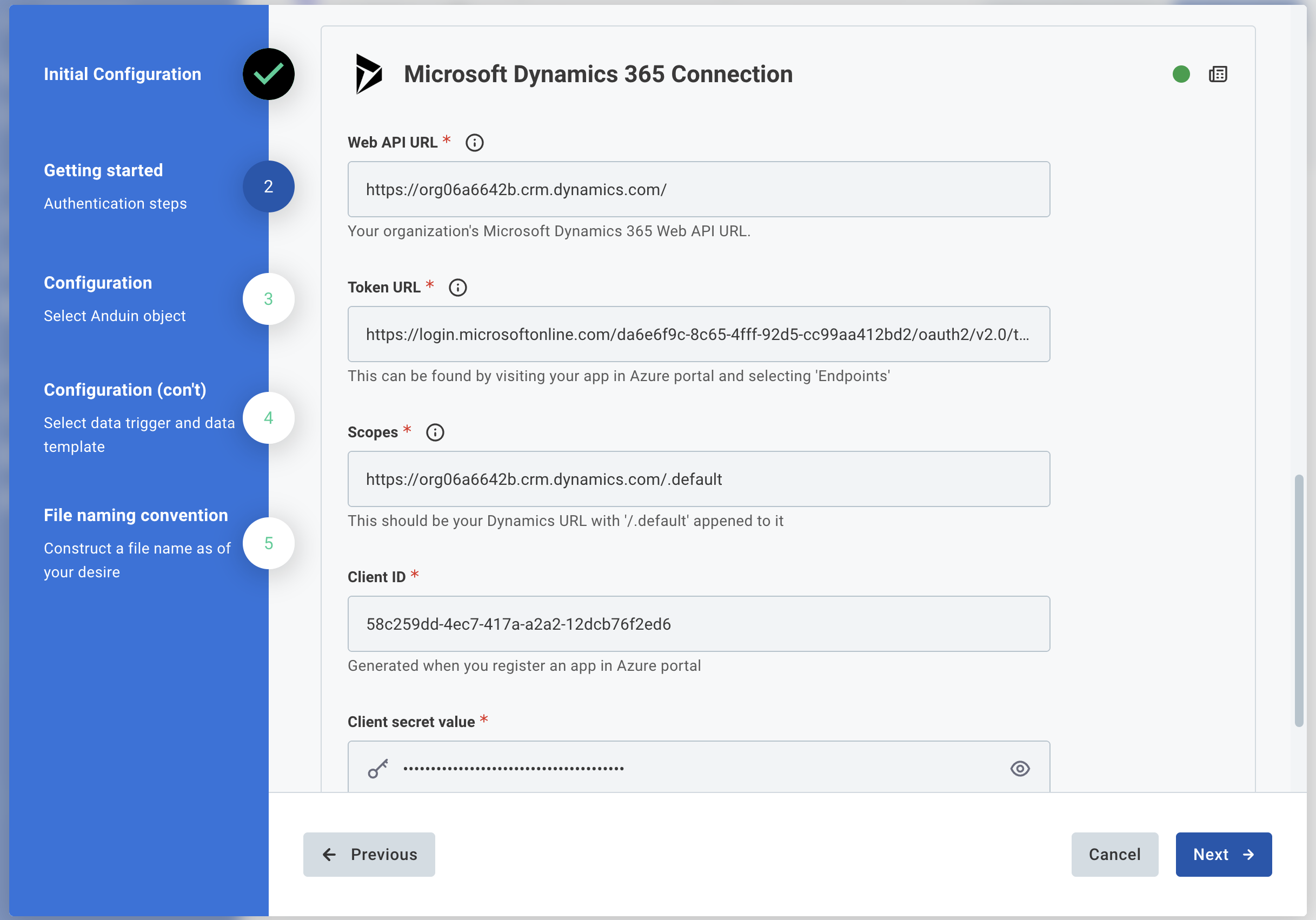
Step 2 — Getting Started: Authentication
The following connection must be authenticated:
- Microsoft Dynamics 365 Connection
- Web API URL (required): Your organization's Dynamics 365 Web API URL — Example:
https://org06a6642b.crm.dynamics.com/ - Token URL (required): Found in Azure portal under your app > Endpoints — Example:
https://login.microsoftonline.com/{tenant-id}/oauth2/v2.0/token - Scopes (required): Your Dynamics URL with
/.defaultappended — Example:https://org06a6642b.crm.dynamics.com/.default - Client ID (required): Generated when you register an app in Azure portal
- Client Secret Value (required): Generated when you register an app in Azure portal
- Web API URL (required): Your organization's Dynamics 365 Web API URL — Example:
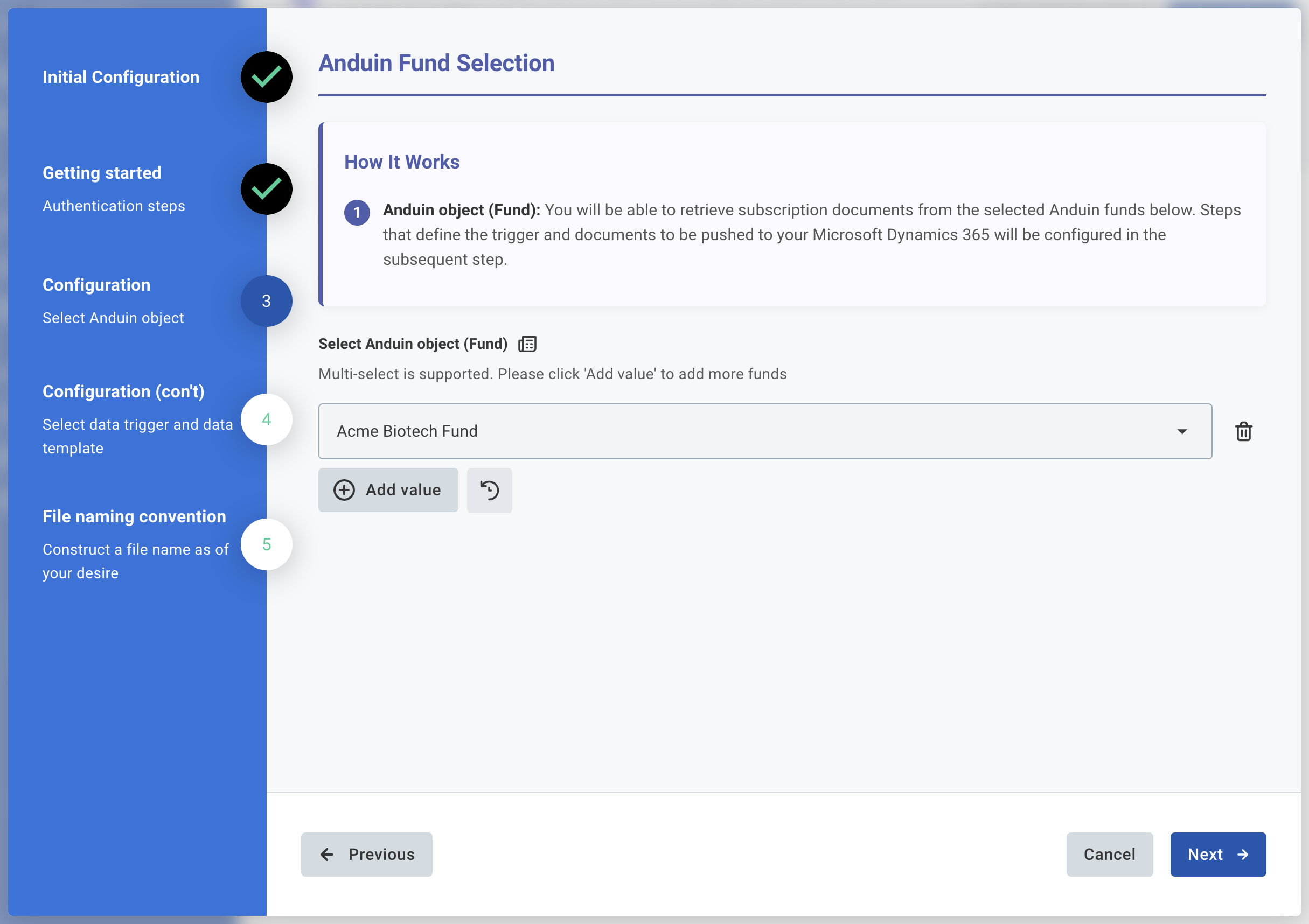
Step 3 — Configuration: Select Anduin object (Fund)
- Select the Anduin fund(s) this integration should work with. Multi-select is supported — click Add value to add more funds.
- Only funds the user has been granted integration permission for (Step 6.3) will appear here.
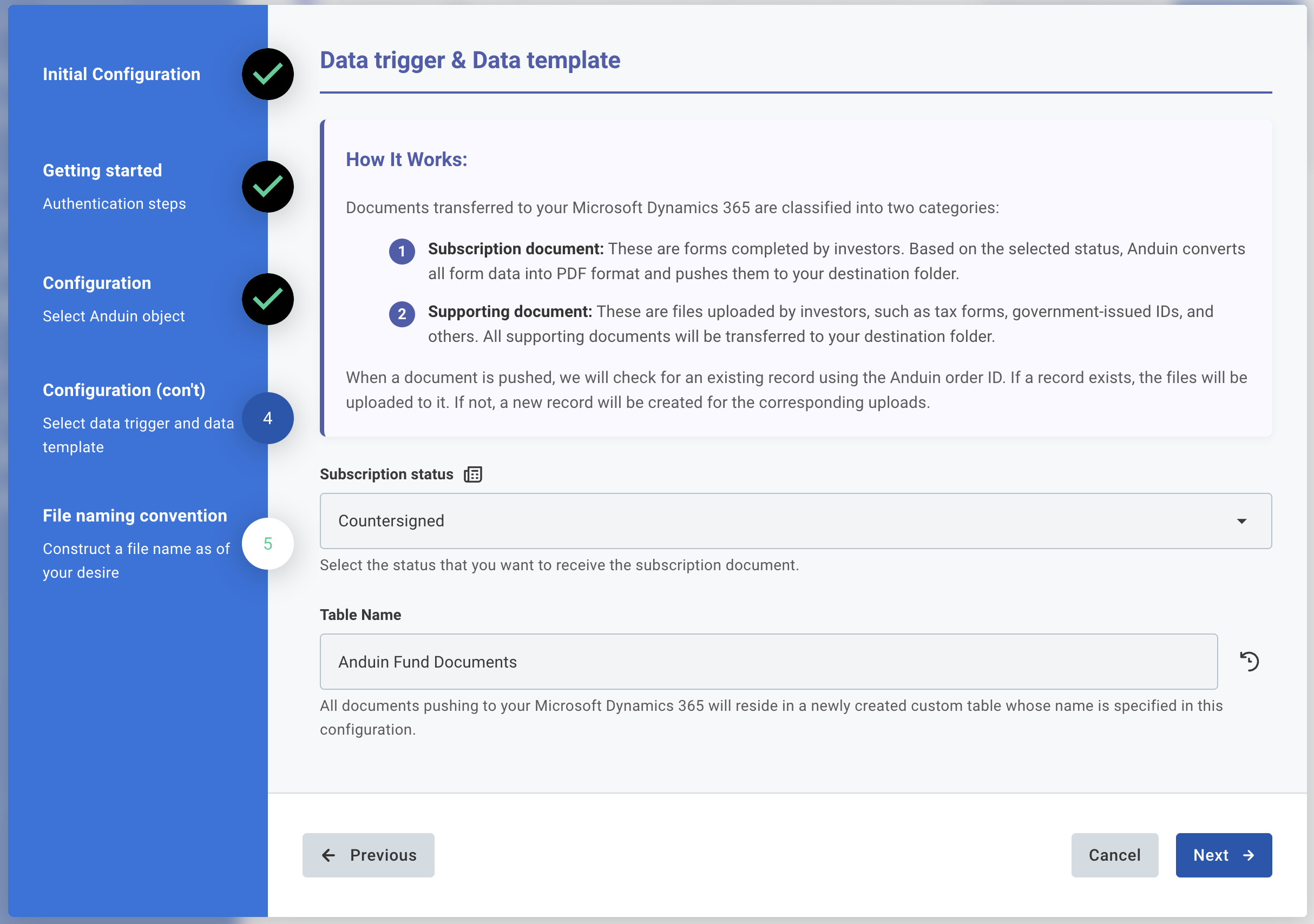
Step 4 — Configuration (con't): Document selection
Documents transferred to your Microsoft Dynamics 365 are classified into two categories:
- Subscription document: These are forms completed by investors. Based on the selected status, Anduin converts all form data into PDF format and pushes them to your destination folder.
- Supporting document: These are files uploaded by investors, such as tax forms, government-issued IDs, and others. All supporting documents will be transferred to your destination folder.
When a document is pushed, we will check for an existing record using the Anduin order ID. If a record exists, the files will be uploaded to it. If not, a new record will be created for the corresponding uploads.
- Subscription status: Select the status that triggers a document push (e.g.,
Countersigned). A push will be triggered every time a subscription reaches this status. - Table Name: Enter the Display Name for the Dynamics 365 custom table that will store Anduin documents (e.g.,
Anduin Fund Documents). Anduin internally derives a Schema Name from this using a fixed naming convention. If a table with the matching Schema Name already exists, documents will be pushed to that existing table. If not, a new custom table will be created automatically.
Note on document versions: When a document is updated after the initial push (e.g., a re-signed subscription or corrected W-9), the updated file is pushed as a new entry. Previous versions remain in place and are distinguishable by filename timestamp.
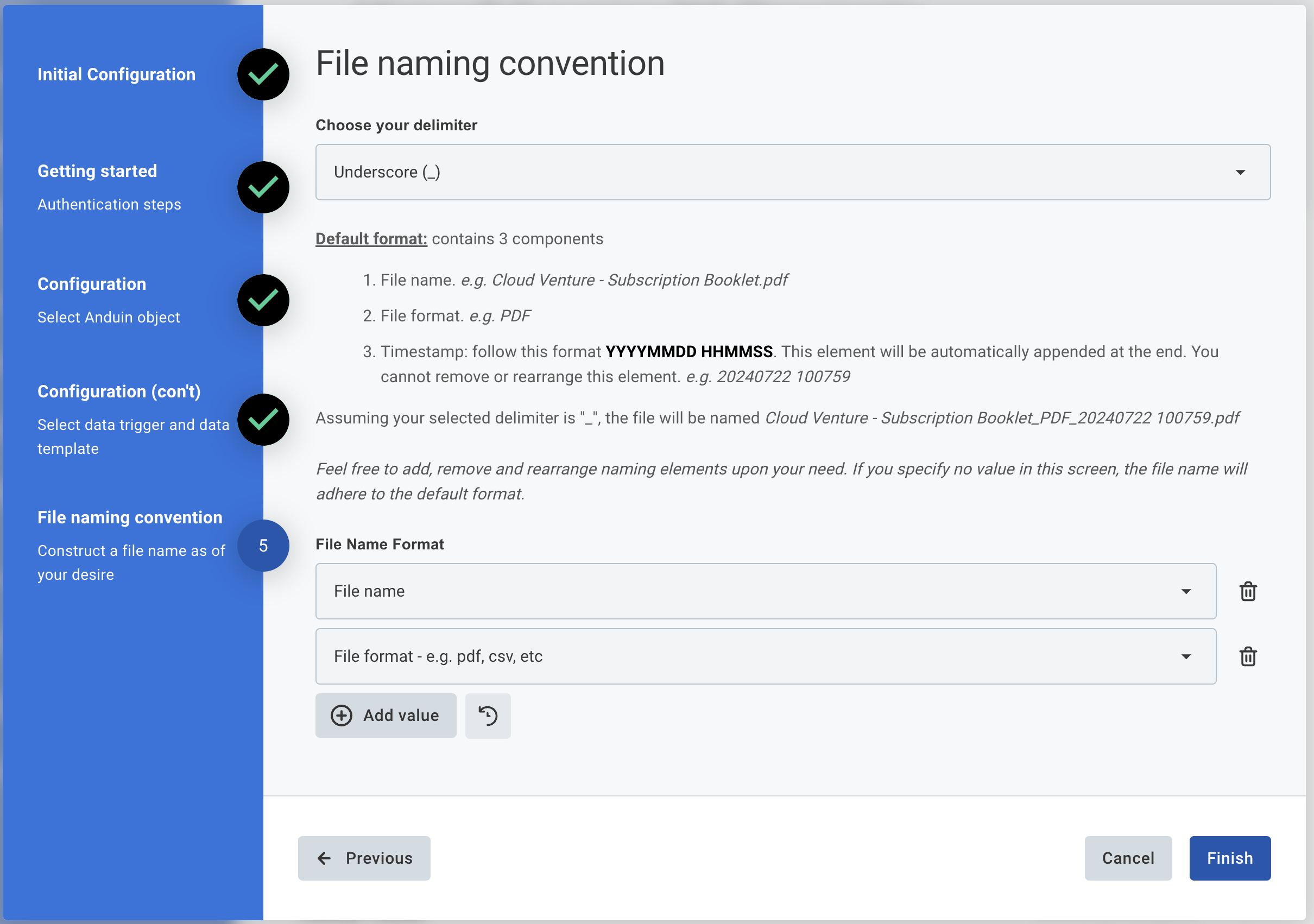
Step 5 — File naming convention
- Choose your delimiter (e.g., Underscore
_) - Default format contains 3 components:
- File name — e.g. Cloud Venture - Subscription Booklet.pdf
- File format — e.g. PDF
- Timestamp — follows format YYYYMMDD HHMMSS. This element is automatically appended at the end and cannot be removed or rearranged.
- File Name Format: Configurable. Add, remove, and rearrange naming elements as needed. If no value is specified, the file name will adhere to the default format.
Click Finish to complete setup.
6.5 Validate the solution
Once configuration is complete:
- The customer can verify the integration has created a new custom table in Dynamics 365 (or confirm documents are being pushed to the existing table if the name already existed).
- The customer then creates a subscription in the target fund, fills out the data, and moves the subscription to the triggering status.
- This will initiate the integration, resulting in:
- A new record being created in the target Dynamics 365 table
- The subscription document (PDF) being attached to the record
- All supporting documents uploaded by the LP being attached to the record
If the automation works end-to-end, the setup is successfully validated.
7. Version Accumulation
When documents are updated after the initial push (e.g., subscription re-signed via change request, investor uploads a corrected W-9), the updated document is pushed as a new file in Microsoft Dynamics 365. The previous version remains in place — Dynamics 365 accumulates all versions; nothing is replaced. Each version is distinguishable by filename timestamp or upload date.
Updated 13 days ago