
Automated data room insights retrievals
1. Purpose
Automatically sync investor engagement data from Anduin Data Rooms to the customer’s DealCloud CRM - giving teams real-time visibility into actionable insights and enabling faster, more informed decisions.
2. Key Benefits & Features
- Real-time investor tracking — automatically capture every key activity across the data room lifecycle, including when an investor is invited, joins, views, or downloads a document.
- Flexible event filtering — choose which investor activities to track, so your CRM only receives the signals that matter to your team.
- Historical data backfill — on the first run, the integration imports past investor activity based on the Initial Backfill Period (Days) you configure, so your CRM is populated from day one.
- Hands-off automation — eliminate manual data entry by having investor engagement data flow directly into DealCloud without any repetitive admin work.
3. Potential Customer Personas
- Any Data Room customer using DealCloud as their CRM.
- Especially helpful for firms with high investor activity and multiple data room participants.
4. Prerequisites
4.1 Third party app requirements
- API key: Customer must know their API key. Otherwise, they can contact their DealCloud representatives for this information
- Object preparation: Customer must create an object to receive data from Anduin, which must:
- Include all below fields with the exact API name
- DataroomID: The internal unique ID of the data room in Anduin
- DataroomName: The human-readable name of the data room
- FirstName: Investor's first name
- LastName: Investor's last name
- Email: Investor's email address
- Domain: The email domain of the investor (e.g.
vertex.com), useful for grouping by firm - GroupName: The group or organization the investor belongs to within the data room
- TermsOfAccessStatus: Whether the investor has accepted the terms of access
- DeclinedAt: Timestamp of when the investor declined the terms of access or invitation (if any)
- RemindedAt: Timestamp of when a reminder was sent to the investor (if any)
- LastAction: The most recent activity the investor performed (e.g. Viewed, Downloaded)
- LastActionAt: Timestamp of that most recent activity
- FileID: The internal unique ID of the specific file the investor interacted with
- FileName: The name of that file
- Viewed: Total number of times this file has been viewed by the investor from backfill’s date to today
- LastViewedAt: Timestamp of the most recent view event on this file
- ViewAccumulated: Total number of times this file has been viewed by the investor
- ViewDurationAccumulated: Total time (in seconds) the investor has spent viewing this file
- Downloaded: Total number of times this file has been downloaded by the investor from backfill’s date to today
- LastDownloadedAt: Timestamp of the most recent download event on this file
- DownloadAccumulated: Total number of times this file has been downloaded by the investor
- CreatedDate: When this record was first created in Anduin
- CreatedBy: Who created the record (Anduin’s Integration Hub)
- ModifiedDate: When this record was last updated
- ModifiedBy: Who last modified the record (Anduin’s Integration Hub)
- Use the text field type for all mapped fields. Restrictive types like numeric or picklist will break the integration
- Include all below fields with the exact API name
4.2 Anduin app requirements
- Data Room access - the user must either:
- Have admin access to the intended data rooms, or
- Know a team member with admin access who can grant the necessary permissions during setup
- Data sync logic
- Initial Run - On the first run, the integration queries and pushes all investor engagement activities that fall within the time window defined by the Initial Backfill Period (Days) configuration. This is a one-time operation that runs immediately after installation.
- Subsequent Runs - After the initial run, the integration operates in real-time — automatically pushing data whenever an investor is invited, reminded, or performs an activity (viewed or downloaded a document).
5. Pre-Setup Checklist
| Task | Owner | Note | Anduin guide |
|---|---|---|---|
| DealCloud API key | Customer | LINK | |
| DealCloud Object Preparation | Customer | Guided by Anduin to ensure correct inputs | Refer to section 4. |
| Data Room access | Customer | Consulted by Anduin | Refer to section 4.2 |
6. Step-By-Step Guide
6.1 Grant access to the Integration Hub
- Customers need to contact their Implementation manager to ensure they have access to the Integration Hub and this specific integration
6.2 Locate the solution
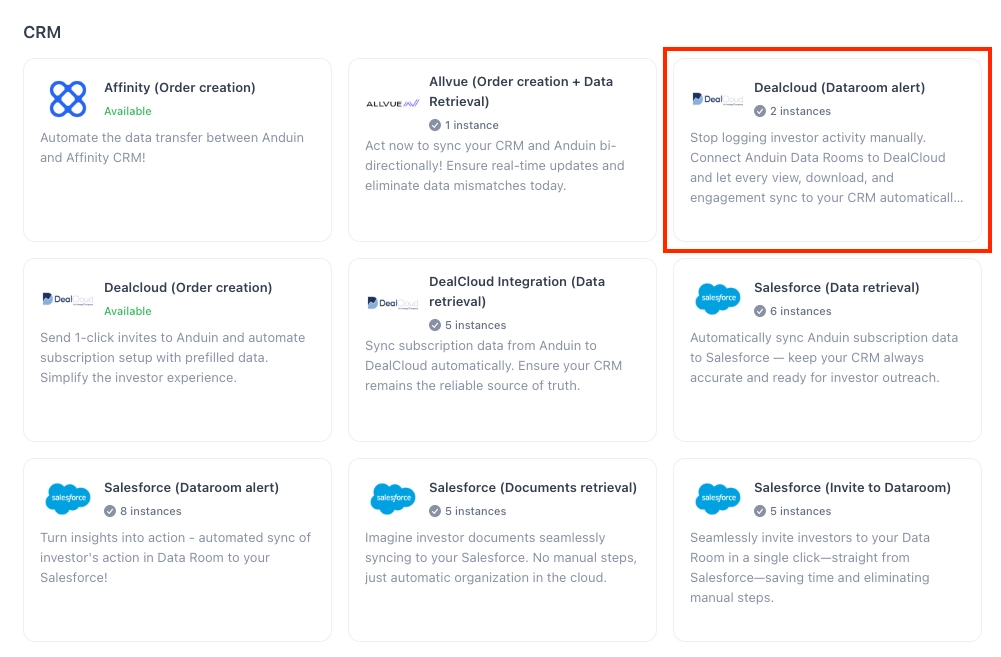
- In the Browse tab of the Integration Hub, the customer can locate the DealCloud (Data Room alert) solution
6.3 Install the solution
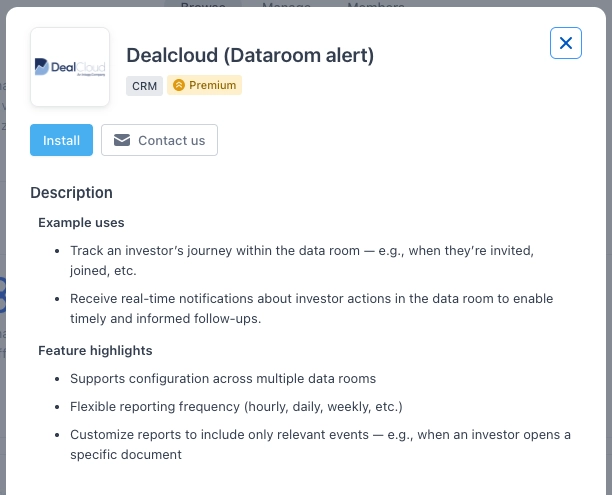
- Step 1: Click Install to begin setup
-
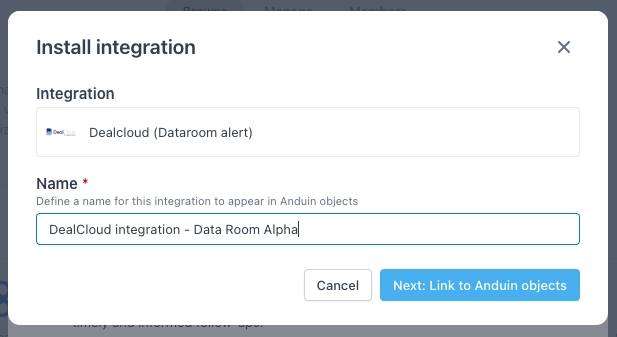
Step 2: Name the Integration
- Recommend a clear and descriptive name (e.g., “DealCloud integration - Data Room Alpha” or “By John Smith”)
- Click Next: Link to Anduin objects
-
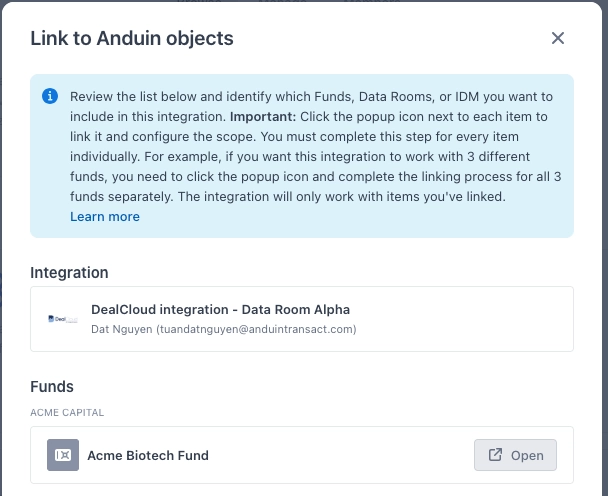
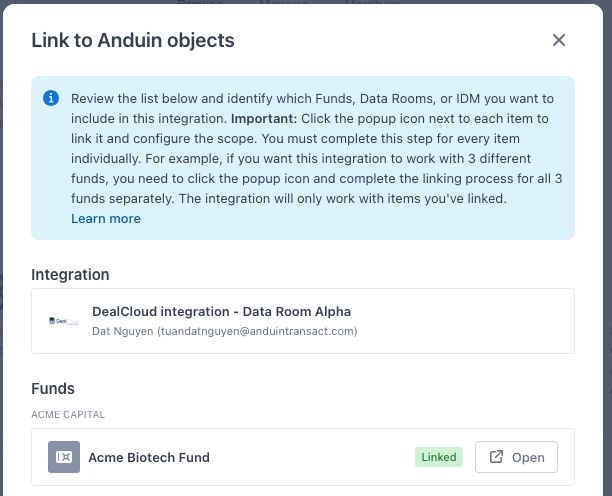
Step 3: Grant integration permission to customer’s intended objects (data room)
-
Step 3.1: A list of accessible Anduin objects (e.g., Data Room) will appear
-
Step 3.2: Click Open next to the relevant data room
- Step 3.3: In the permission module, find the integration name and click Add

-
Step 3.4: Return to the Integration Hub - the data room should now show a “Linked” tag. Click Next to proceed
-
If the target Data Room is not listed, there are 2 options
- Customer needs to be added with admin role for that Data Room, then return to the step 3.2. Customer should be able to see the target Data Room there
- Customer requests their team member who has admin role in that data room
- to perform step 3.3 using Settings > Integrations in the Data Room app and they can continue with step 3.4
6.4 Configure the solution
-
The customer may rename the integration or proceed as-is
-
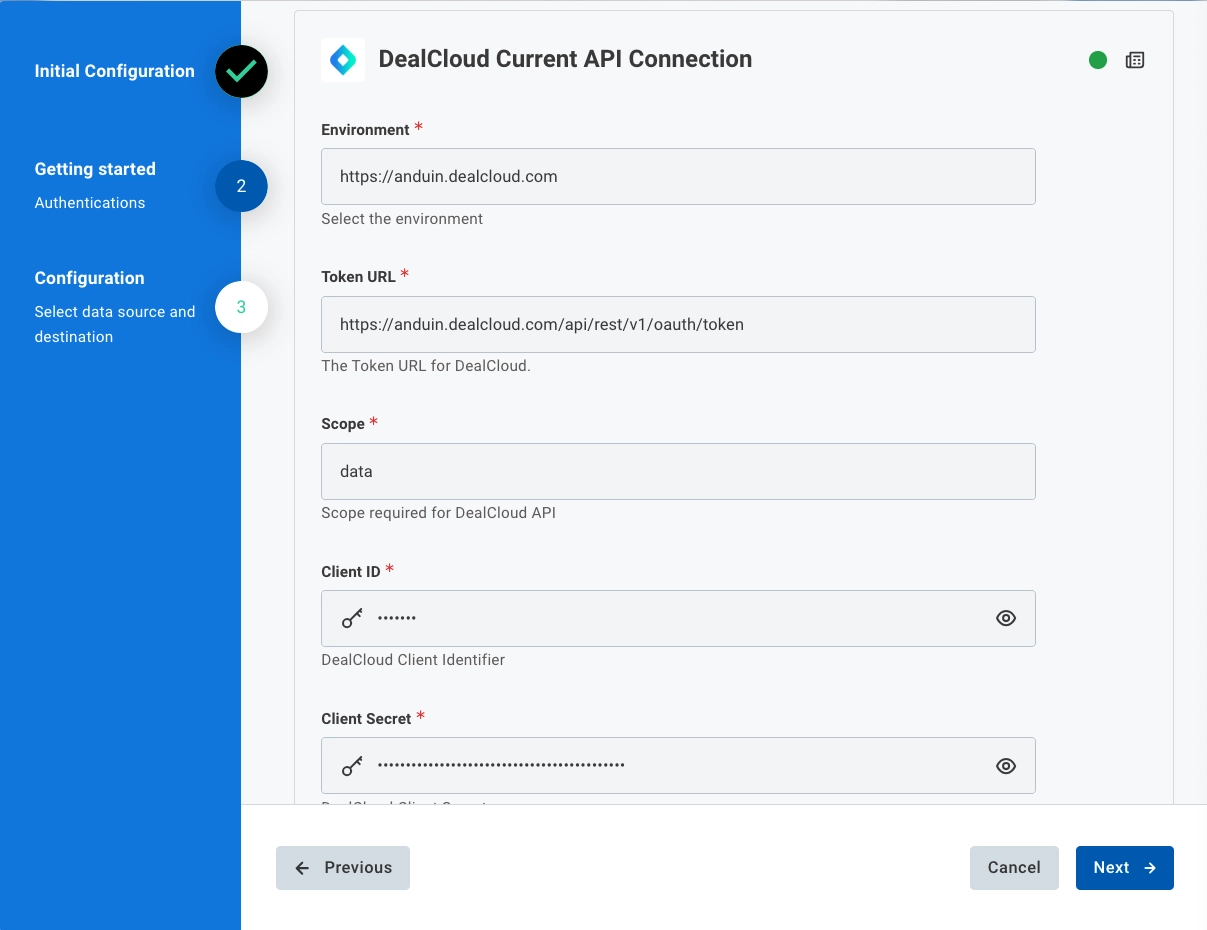
Enter DealCloud credentials
-
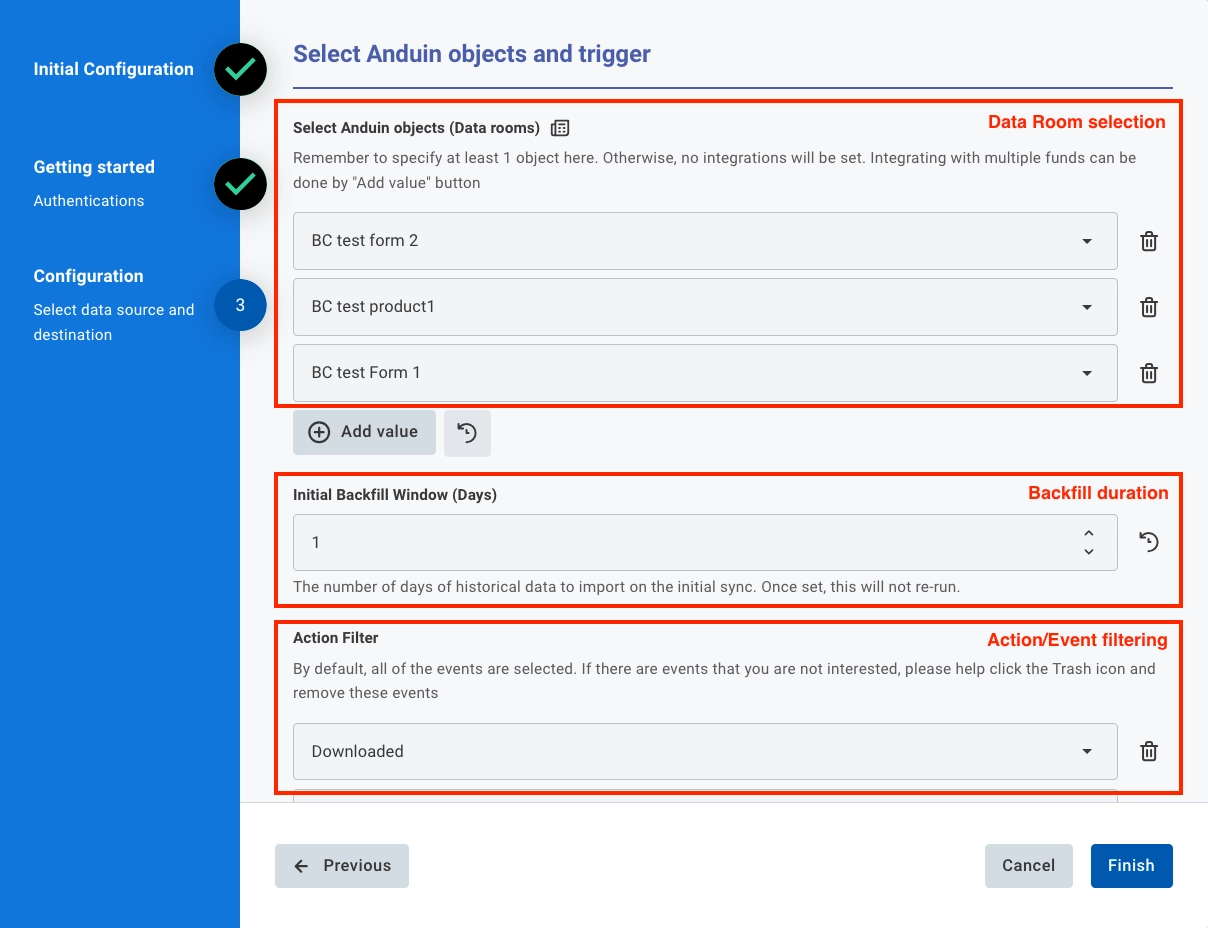
Integration configuration
- Select the data rooms customers want to connect.
- Set the number of days to backfill on the initial sync. The integration will import all investor activities from today back to the specified number of days — this only runs once upon installation.
- Configure the investor activities that only matter to customer (or leave as-is to include all events):
- Invited – when an investor is invited to a data room
- Joined – when an investor accepts the invitation and joins
- Viewed – when an investor opens and views any documents
- Downloaded – when an investor downloads any documents
- Select the DealCloud object where insights will be stored
6.5 Validate the solution
To test the configuration, wait until an investor is invited, viewed or downloaded a file. The system should send corresponding insights to the specified DealCloud object.
Updated 6 months ago